![wethos_icon_light-mode-nmcocwgai7dk3bq6c54sa7ubcw.svg]](https://24346244.fs1.hubspotusercontent-na1.net/hubfs/24346244/wethos_icon_light-mode-nmcocwgai7dk3bq6c54sa7ubcw.svg)
OVERVIEW
The Microsoft Teams integration allows your organization to access WethosXO™ directly inside Microsoft Teams, giving every team member a personalized workplace coach in their preferred communication channel. Instead of switching between platforms, your team gets WethosAI's capabilities right where they already work.
WHAT THE INTEGRATION DOES
The Microsoft Teams integration connects your Teams environment with the WethosAI platform, enabling your team to:
-
Access WethosXO in Teams — Interact with the WethosXO AI assistant directly from within Microsoft Teams channels and chats.
-
Enable team-wide collaboration — Give your entire organization access to WethosAI insights right where they already communicate.
-
Run Simulated Brainstorms in Teams — Create and run simulated brainstorms directly within Microsoft Teams, bringing structured team ideation into your existing workflow.
-
Break out privately with XO — Any team member can move from a group chat into a private conversation with XO while retaining the full context of the discussion — perfect for deeper individual coaching without leaving the flow of work.
-
Streamline notifications and workflows — Receive WethosAI updates and notifications within your Teams environment.
KEY BENEFITS
Meet Your Team Where They Are — Instead of requiring team members to switch between platforms, the integration brings WethosAI's capabilities directly into the tool your team uses every day.
Enterprise-Grade Deployment — The integration is managed through the Microsoft Teams admin center, giving IT administrators full control over app availability, permissions, and deployment across the organization.
Instant Access to WethosXO — Once installed, any team member can start chatting with WethosXO directly in Microsoft Teams — no separate login or context-switching required.
HOW TO CONNECT TEAMS (Admin)
The integration is set up by an organization admin through the WethosAI platform and the Microsoft Teams admin center.
Step 1: Go to Enterprise Integrations
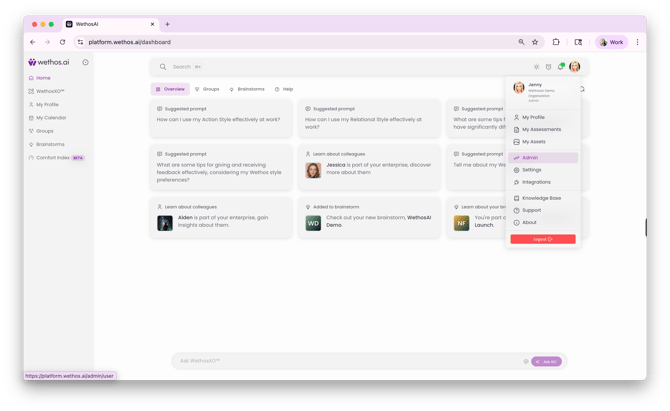
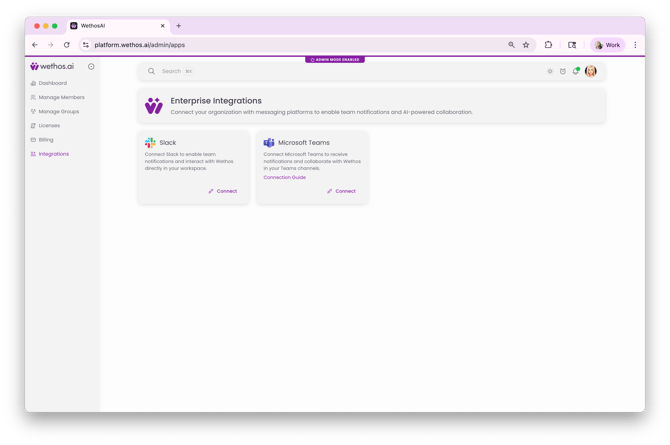
As an admin, log in to your WethosAI platform account. Go to Admin → Integrations to open the Enterprise Integrations page.
Step 2: Initiate MS Teams Connection
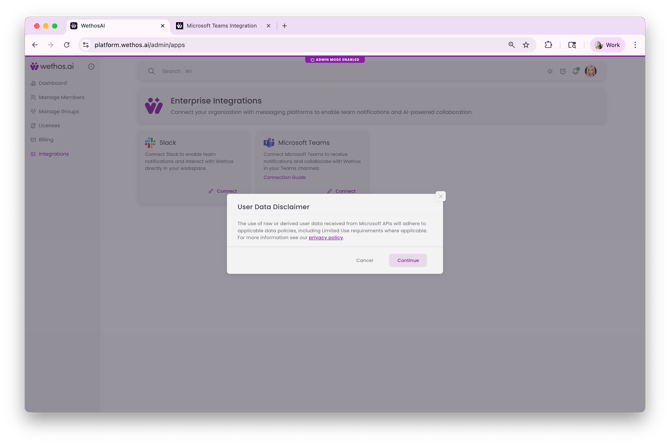
Click the Connect button on the Microsoft Teams integration card. You'll see a pop-up with details on the WethosAI privacy policy.
Step 3: Continue & Redirect
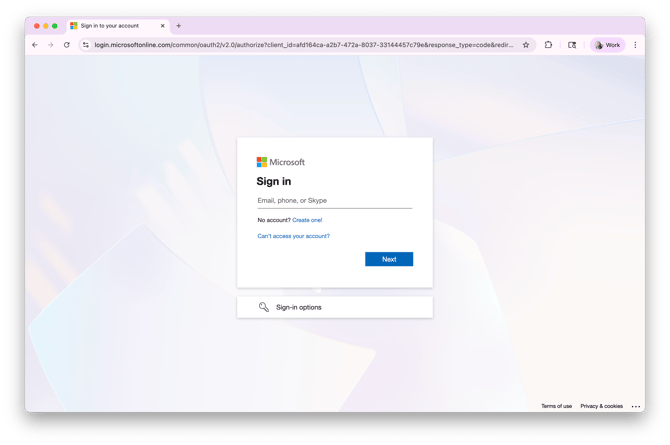
After continuing, you'll be redirected to Microsoft's authentication page. Sign in and continue through the authentication flow until you are returned to WethosAI.
Step 4: App Installation
To access the WethosXO Microsoft Teams app, begin by installing the zip file:
- Navigate to the Teams apps section of your Microsoft Teams admin center.
- Click Actions → Upload new app and select the zip file you just installed.
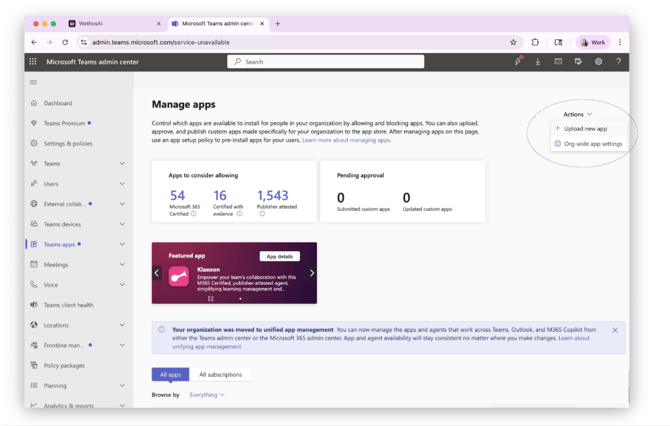
Step 5: Configure
Once uploaded, you can configure the availability of the application to your enterprise. The default setting makes it available to all users.
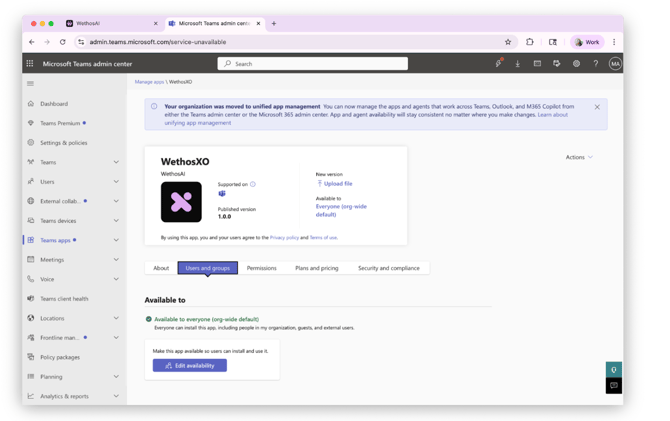
Step 6: Add the App
Navigate to the Apps page in your Microsoft Teams instance. Select Built for your org and click Add on the WethosXO app. Start chatting with WethosXO.
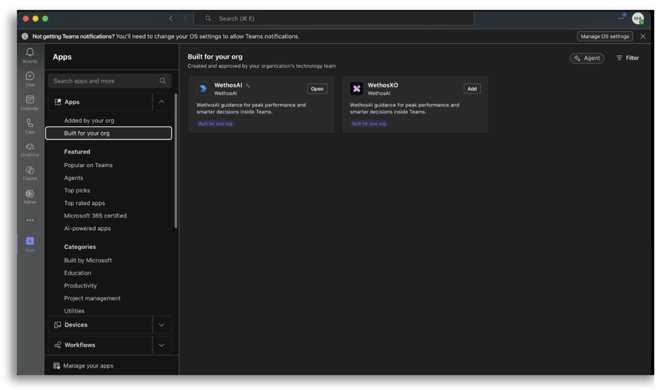
GETTING STARTED FOR TEAM MEMBERS
Team members do not need to complete the admin setup. Once the app is deployed by an admin:
Step 1: Open Microsoft Teams
Launch the Microsoft Teams app on your desktop or browser.
Step 2: Find the App
Navigate to the Apps page and select Built for your org.
Step 3: Add WethosXO
Find the WethosXO app and click Add.
Step 4: Start Chatting
Open a chat with WethosXO to begin. You can interact with XO just as you would on the WethosAI platform.
For more details on getting started for users (not admins), check out this knowledge base article.
USING WETHOSXO IN TEAMS
Once the app is installed and added, team members can interact with WethosXO directly within Microsoft Teams. WethosXO works the same way it does on the platform — all responses are grounded in your actual Wethos Style data. XO can assist with:
-
Quick insights — Ask questions about team dynamics, your behavioral style, or collaboration recommendations.
-
Profile lookups — Access team member profiles, traits, and working style guidance.
-
Meeting prep — Get behavioral coaching before meetings based on attendees' Wethos Styles.
-
Simulated Brainstorms — Create and run simulated brainstorms directly in Teams to facilitate structured team ideation and collaboration without leaving your Teams environment.
-
Private breakout conversations — Break out from a group chat into a private 1:1 conversation with XO while retaining the context of the group discussion. This allows team members to explore individual coaching or dig deeper on a topic privately.
-
Workflow support — Get AI-powered assistance with tasks connected to your WethosAI workspace.
NEW: SIMULATED BRAINSTORMS & PRIVATE BREAKOUTS IN TEAMS
The latest version of WethosXO for Microsoft Teams introduces two new features: the ability to run simulated brainstorms directly in Teams, and the ability to break out into a private chat with XO while retaining the context of a group conversation.
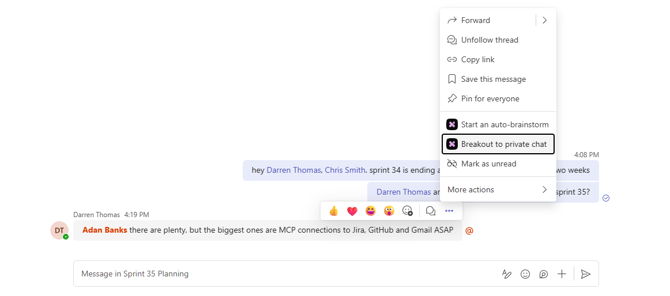
Both features are accessible from the message actions menu — hover over any message in a chat or channel, click the "..." (more options) menu, and you'll see Start an auto-brainstorm and Breakout to private chat listed as WethosXO actions.
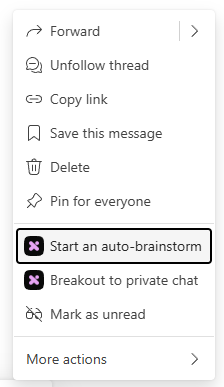
Simulated Brainstorms in Teams
Simulated brainstorms let WethosAI generate a structured brainstorming session using AI-driven participants based on your team members' behavioral profiles. The AI personas will debate, challenge each other, and work toward decisions — all grounded in the context of the conversation.
How to start one:
- In any chat or channel, hover over a message and click the "..." menu.
- Select Start an auto-brainstorm.
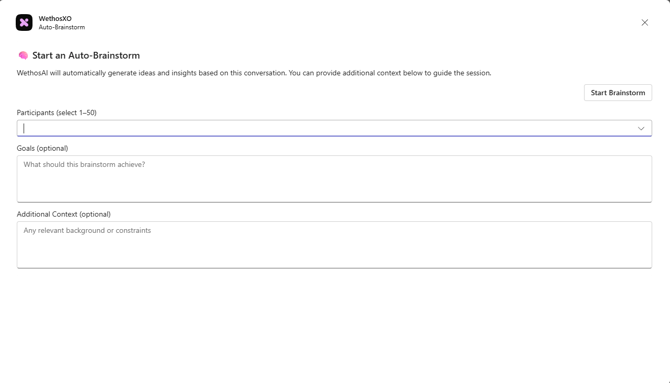
- A setup dialog will appear. Select Participants (up to 50), add optional Goals (what the brainstorm should achieve), and provide any Additional Context (relevant background or constraints).
- Click Start Brainstorm.
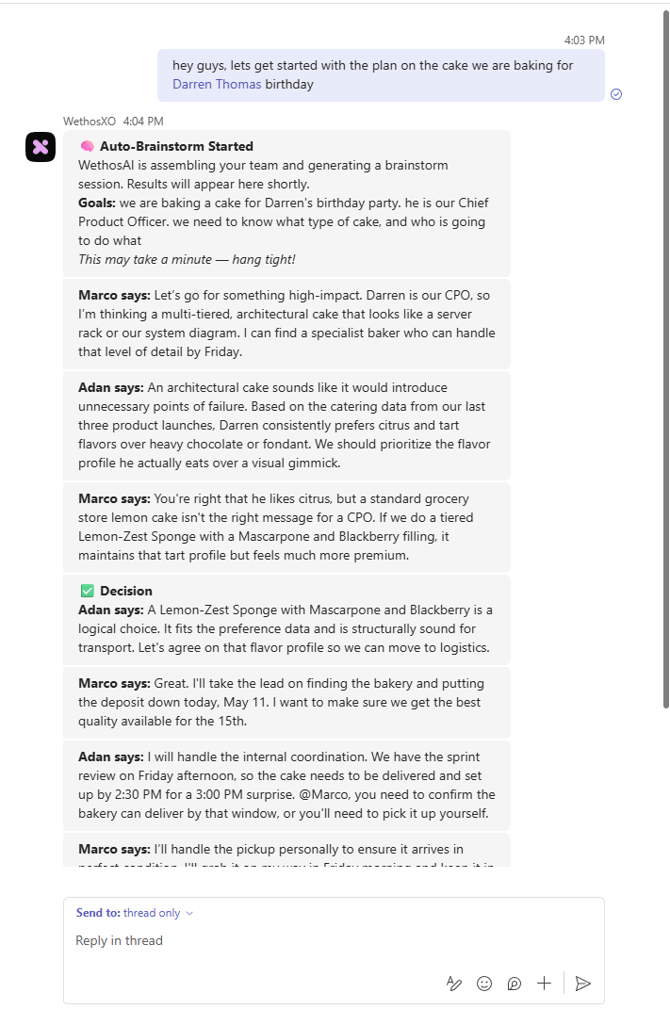
- WethosXO will assemble the team and generate the session. Results appear directly in the thread.
The simulated participants will discuss the topic based on their actual Wethos Styles, propose ideas, challenge each other, and mark Decisions (shown with a green checkmark) when alignment is reached. You and your team can then reply in the thread to continue the conversation, refine the decisions, or take the work forward.
Private Breakouts in Teams
Private breakouts let you move from a group chat or channel into a private 1:1 conversation with WethosXO — while XO retains the full context of the group discussion. This is ideal for deeper individual coaching, exploring a sensitive question, or getting private advice without leaving the flow of work.
How to start one:
- In any group chat or channel, hover over a message and click the "..." menu.
- Select Breakout to private chat.
- A private 1:1 chat with WethosXO will open, with XO carrying the context of the group conversation.
- Ask XO anything — it knows what was being discussed and can provide private, personalized guidance.
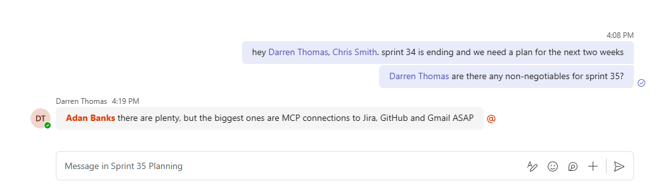
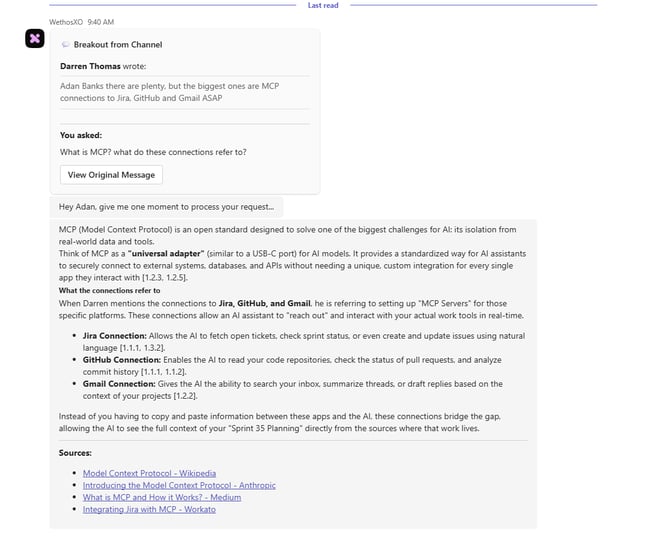
This is especially useful when a group conversation surfaces a question you'd rather explore privately — for example, how to handle a specific teammate dynamic, or whether your approach to a discussion was effective.
TROUBLESHOOTING
Connection Issues
If you experience problems during setup, ensure you're signed into the correct Microsoft account with admin privileges. Check that pop-up blockers aren't preventing the authentication window from opening. Verify that your Microsoft 365 tenant allows third-party app installations. If the issue persists, try disconnecting and reconnecting the integration from the WethosAI platform.
App Not Appearing in Teams
If team members can't find the WethosXO app, confirm that the app has been uploaded successfully in the Teams admin center. Check that the app's availability settings include the relevant users or groups. Note that it may take a few minutes for newly uploaded apps to propagate across your Teams instance. Ensure team members are looking under Built for your org in the Apps section.
Authentication or Access Problems
If users encounter errors when using WethosXO in Teams, verify that the user has an active WethosAI platform account. Ensure the user's email address matches across both Microsoft Teams and WethosAI. Check that the integration is still active in the WethosAI admin settings.
TIPS
Make sure your Microsoft 365 tenant allows third-party app installations before starting the setup process. Coordinate with your IT team if app policies need to be adjusted.
Communicate with your team once the app is deployed. Let them know WethosXO is available in Teams, where to find it (Apps → Built for your org), and that they can start chatting immediately.
Users must have the same email address in both Microsoft Teams and WethosAI for the integration to connect properly. If a user's email doesn't match, XO won't be able to access their behavioral data.