![wethos_icon_light-mode-nmcocwgai7dk3bq6c54sa7ubcw.svg]](https://24346244.fs1.hubspotusercontent-na1.net/hubfs/24346244/wethos_icon_light-mode-nmcocwgai7dk3bq6c54sa7ubcw.svg)
OVERVIEW
Once your organization admin has deployed WethosXO™ to your Microsoft Teams environment, you can add the app and start chatting with XO directly — just like you would on the WethosAI platform. This means you can get behavioral coaching, ask about colleagues' working styles, and prepare for meetings without leaving Teams. All responses are grounded in your actual Wethos Style data.
Note: Your organization admin must deploy the WethosXO app to your Teams instance before you can add it. If you don't see WethosXO under "Built for your org" in the Apps section, ask your admin to complete the setup first.
ADDING THE APP
Step 1: Open Microsoft Teams
Launch the Microsoft Teams app on your desktop or browser.
Step 2: Find the App
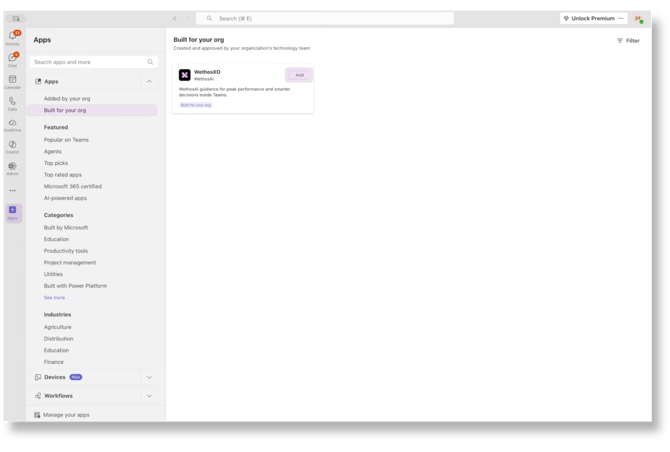
Navigate to the Apps page using the icon in the left sidebar. Select Built for your org.
Step 3: Add WethosXO
Find the WethosXO app (listed under WethosAI) and click the Add button.
Step 4: Start Chatting
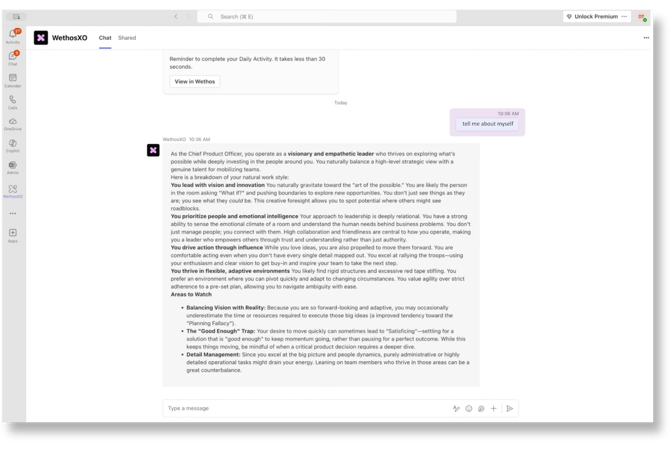
Once added, open a direct chat with WethosXO to begin. You can interact with XO just as you would on the WethosAI platform.
Try asking XO about yourself. For example, type "tell me about myself" and XO will provide a detailed breakdown of your natural work style, leadership strengths, and areas to watch — all based on your behavioral profile.
Some things to try:
- "What are my strengths based on my Wethos Style?"
- "How should I approach a difficult conversation with my manager?"
- "Help me prepare for my meeting this afternoon."
- "My team isn't collaborating well — what can I do?"
Tip: XO is currently focused on the mirror aspect of the Wethos flow, so center your prompts around self-reflection and understanding your own work style.
CHATTING WITH XO IN GROUP CONVERSATIONS
You can bring XO into any group chat or 1:1 conversation to get insights about your colleagues and how to work together effectively.
- Open an existing chat or start a new one with a colleague.
- Add WethosXO to the conversation (just as you would add any participant).
- @WethosXO and ask about a teammate — for example: "@WethosXO tell me about @Marco and how we can best work together."
Make sure you @ the person you're asking about, even if they're in the conversation.
Tip: Once added, XO picks up the full context of the conversation moving forward — giving it what it needs to provide meaningful, relevant guidance as the discussion progresses.
.png?width=670&height=452&name=Add%20(1).png)
USING XO IN TEAM CHANNELS
WethosXO works in team channels too — making it a powerful tool for group collaboration and project discussions.
Creating a Channel
If you're creating a new channel for your team to collaborate with XO:
- Navigate to your team and click the + or "..." menu to Add a channel.
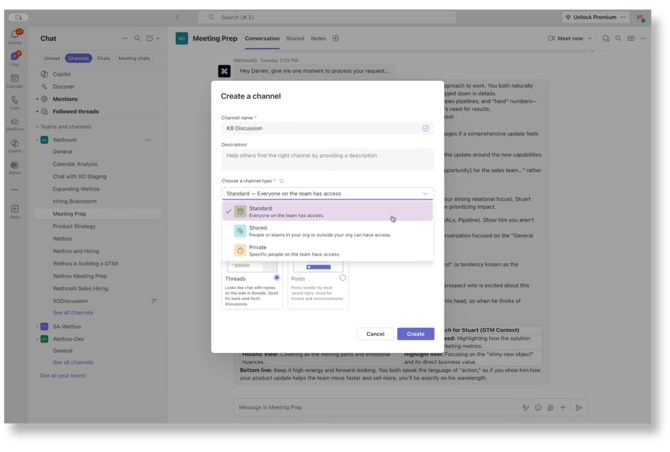
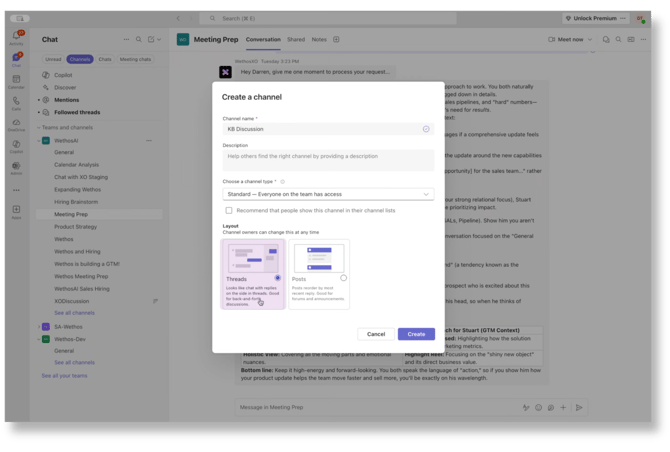
- Give the channel a name (e.g., "KB Discussion").
- Under Choose a channel type, select the channel type of your choice. In this example we will choose Standard — meaning everyone on the team has access.
- Under Layout, we recommend selecting Threads (as this keeps the discussion with XO organized and focused). But XO still works great in the regular channel too!
- Click Create.
Using XO in a Channel
- Open the channel where you'd like to use XO.
- @WethosXO in the channel to start a conversation with the bot.
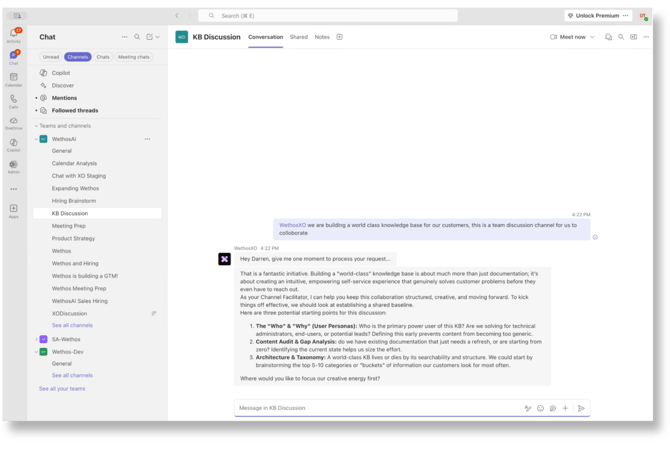
Working in Threads
XO supports threaded conversations, which keeps channel discussions organized:
- Post a message in the channel and @mention WethosXO with your request.
- XO will respond in the main channel. Click Reply in thread to continue the conversation in a focused thread.
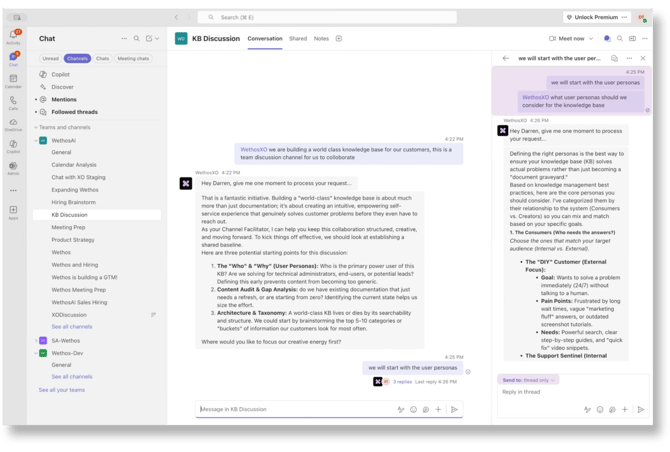
- Continue @mentioning WethosXO within the thread to go deeper on a topic — XO maintains context throughout the thread.
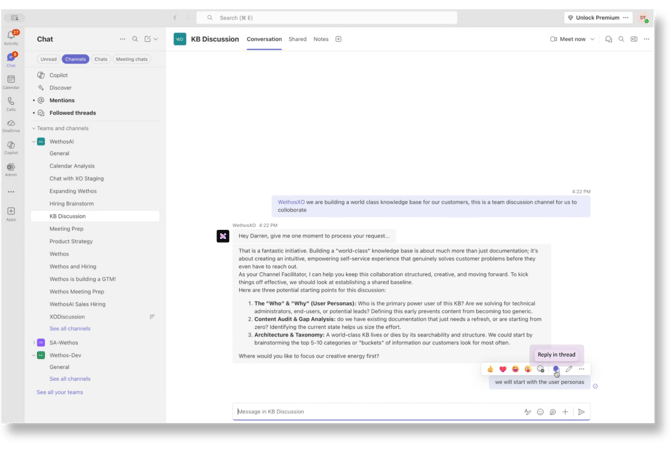
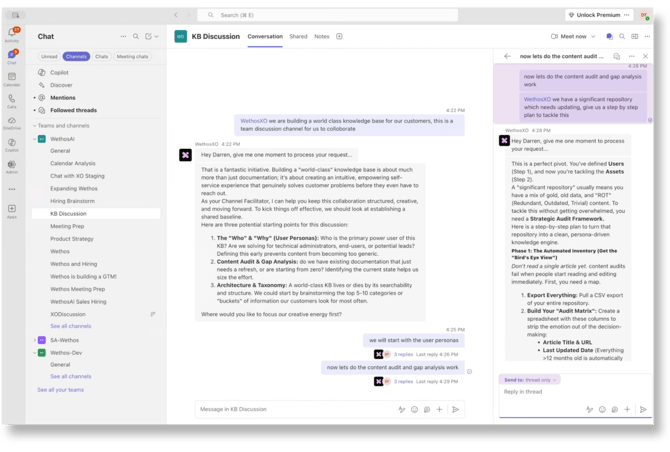
Example workflow: In a "KB Discussion" channel, you might ask XO to help brainstorm knowledge base user personas, then reply in thread to drill into specific persona details, and start a new thread to tackle a content audit — all within the same channel.
Summarizing Channel Activity
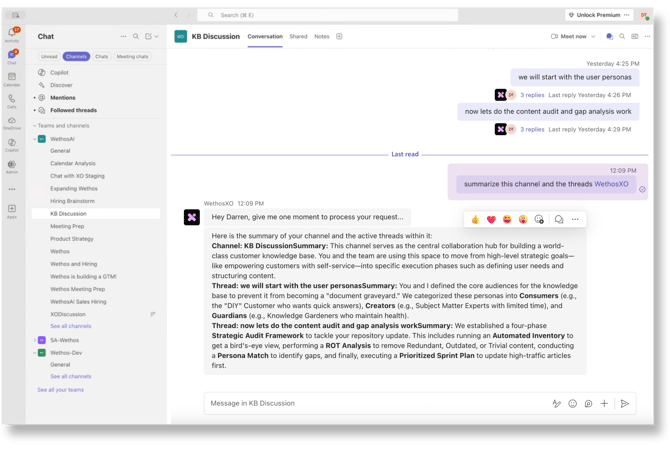
Lost track of a conversation? Ask WethosXO to catch you up. In any channel, type something like:
"@WethosXO summarize this channel and the threads"
XO will provide a concise summary of the channel's purpose, key decisions, and the status of each active thread — so you can get up to speed quickly without reading every message.
SIMULATED BRAINSTORMS
Simulated brainstorms let WethosAI generate a structured brainstorming session using AI-driven participants based on your team members' behavioral profiles. The AI personas will debate, challenge each other, and work toward decisions — all grounded in the context of the conversation.
How to Start One
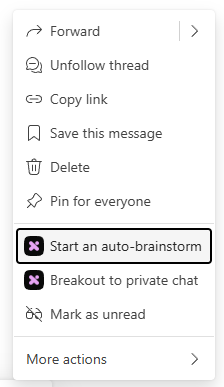
- In any chat or channel, hover over a message and click the "..." (more options) menu.
- Select Start an auto-brainstorm.
- A setup dialog will appear. Select Participants (up to 50), add optional Goals (what the brainstorm should achieve), and provide any Additional Context (relevant background or constraints).
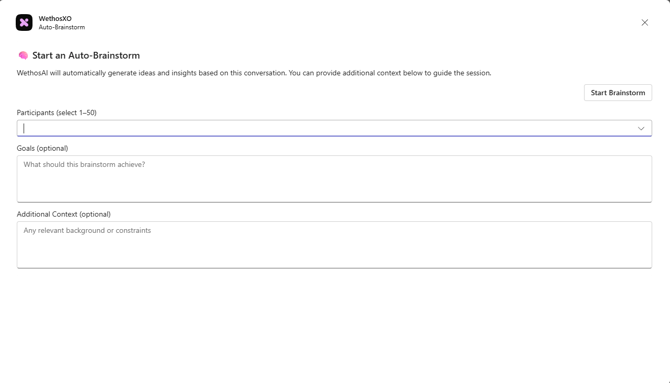
- Click Start Brainstorm.
- WethosXO will assemble the team and generate the session. Results appear directly in the thread.
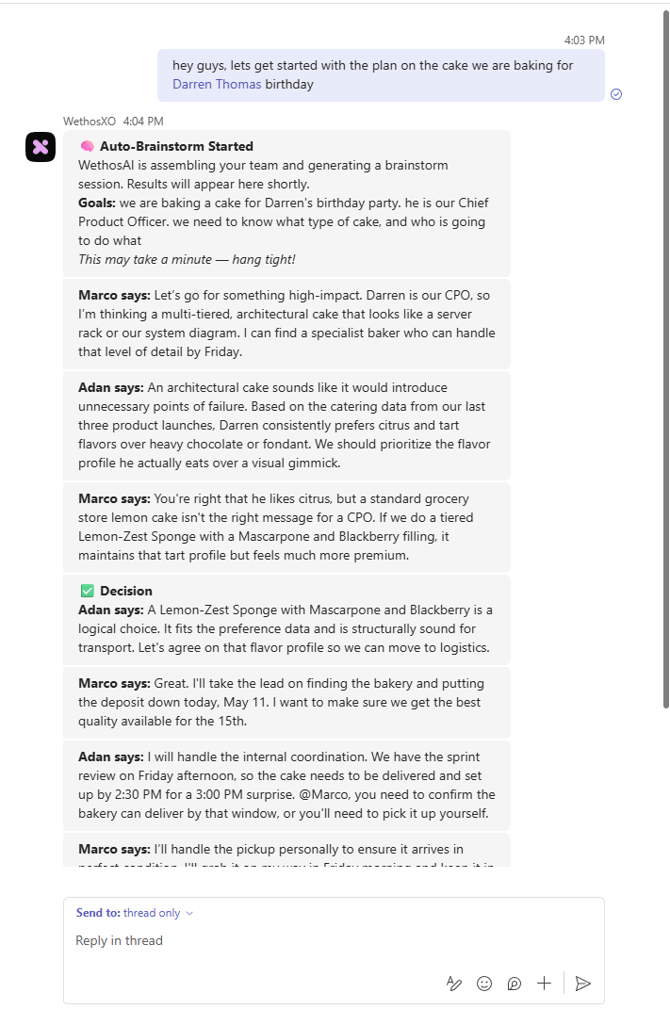
The simulated participants will discuss the topic based on their actual Wethos Styles, propose ideas, challenge each other, and mark Decisions (shown with a green checkmark) when alignment is reached. You and your team can then reply in the thread to continue the conversation, refine the decisions, or take the work forward.
PRIVATE BREAKOUTS
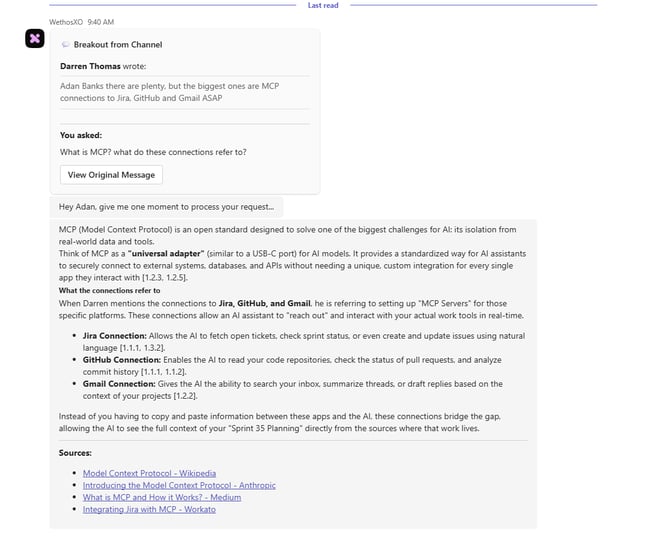
Private breakouts let you move from a group chat or channel into a private 1:1 conversation with WethosXO — while XO retains the full context of the group discussion. This is ideal for deeper individual coaching, exploring a sensitive question, or getting private advice without leaving the flow of work.
How to Start One
- In any group chat or channel, hover over a message and click the "..." (more options) menu.
- Select Breakout to private chat.
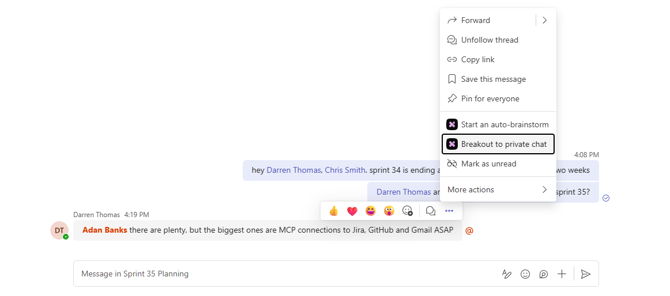
- A private 1:1 chat with WethosXO will open, with XO carrying the context of the group conversation.
- Ask XO anything — it knows what was being discussed and can provide private, personalized guidance.
QUICK REFERENCE
| What you want to do | Where to do it | How |
|---|---|---|
| Learn about your own work style | 1:1 chat with WethosXO | Just type your question directly |
| Get insights on a colleague | Group chat or 1:1 chat with XO added | @mention WethosXO and ask about them |
| Collaborate on a project topic | Team channel | @mention WethosXO in a post or thread |
| Catch up on missed discussions | Team channel | Ask WethosXO to summarize the channel |
| Run a simulated brainstorm | Any chat or channel | Hover over a message → "..." → Start an auto-brainstorm |
| Get private coaching from a group conversation | Any group chat or channel | Hover over a message → "..." → Breakout to private chat |
TROUBLESHOOTING
Can't find the WethosXO app? Make sure you're looking under Built for your org in the Apps section — not the general app store. If it's not there, your admin may not have deployed it yet. Newly uploaded apps can also take a few minutes to propagate across your Teams instance.
Getting authentication or access errors? Verify that you have an active WethosAI platform account and that your email address matches across both Microsoft Teams and WethosAI. If your email doesn't match, XO won't be able to connect to your behavioral data.
XO not responding in a channel or chat? Make sure you're @mentioning WethosXO in your message. XO responds when tagged directly — it won't pick up messages that don't include the @mention.
TIPS
Make sure your Microsoft Teams email address matches your WethosAI account email. The integration relies on matching your accounts, so signing in with a different email may prevent XO from accessing your Wethos Style data.
Think of Teams XO as your quick-access coach. If you're in the middle of a Teams conversation and need behavioral advice before responding, switch to your WethosXO chat, ask your question, and get guidance in seconds.
Your direct messages with XO are private. Just like the Global XO Chat on the platform, your 1:1 conversations with WethosXO in Teams are visible only to you.
Use threads when collaborating with XO in channels. Threaded conversations keep discussions organized and make it easy for teammates to jump into specific topics.
Use the private breakout when a group conversation raises a question you'd rather explore on your own. XO carries the context so you don't have to re-explain.
Ask XO to summarize if you've been away from a channel. Instead of scrolling through every message, let XO catch you up on what you missed.