![wethos_icon_light-mode-nmcocwgai7dk3bq6c54sa7ubcw.svg]](https://24346244.fs1.hubspotusercontent-na1.net/hubfs/24346244/wethos_icon_light-mode-nmcocwgai7dk3bq6c54sa7ubcw.svg)
OVERVIEW
Organization administrators can control which features and integrations are available to their team through the Admin panel. This includes enabling or disabling platform features like CalendarIQ, Documents, Cloud File Drive, the Comfort Index, and external assessment integrations like DISC and MBTI.
This guide walks through how to access the Admin panel, navigate to the feature settings, and understand what each toggle does.
Note: This functionality is only available to users with an Admin role.
ACCESSING THE ADMIN PANEL
Step 1: Open Your Profile Menu
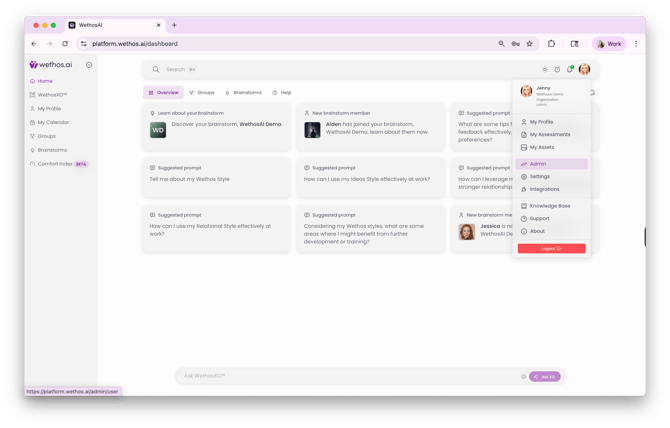
Click your profile icon in the top-right corner of the platform. A dropdown menu will appear showing your name, organization name, and role.
Step 2: Select Admin
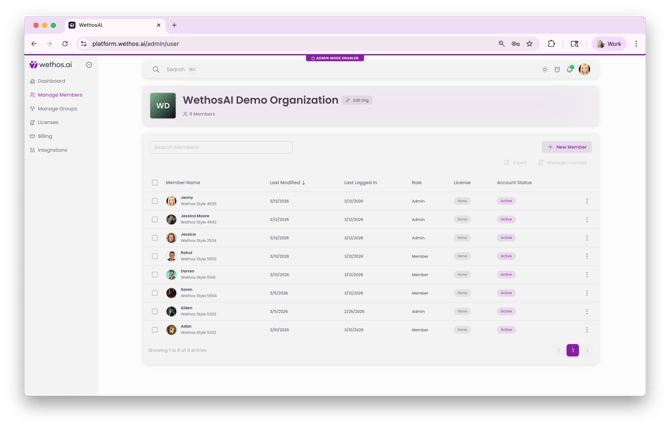
In the dropdown menu, click Admin. This will switch the platform into Admin Mode — you'll see a purple "Admin Mode Enabled" banner at the top of the screen, and the left-hand navigation will change to show admin-specific sections: Dashboard, Manage Members, Manage Groups, Licenses, Billing, and Integrations.
Step 3: Navigate to Edit Organization
From the Admin panel, you'll see your organization name, member count, and a member management table. Click the Edit Org button (pencil icon) next to your organization name at the top of the page.
Step 4: Go to the Features Tab
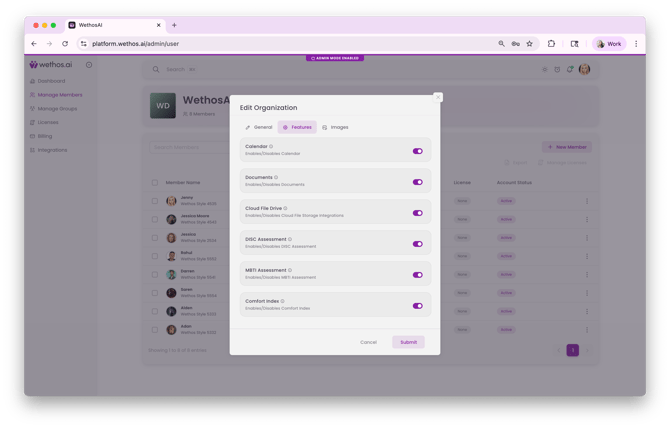
In the Edit Organization modal, you'll see three tabs: General, Features, and Images. Click the Features tab to see the list of toggleable features and integrations for your organization.
AVAILABLE FEATURE TOGGLES
Each feature has an on/off toggle. When a feature is enabled, it becomes available to all members of your organization. When disabled, the feature is hidden from the platform experience.
Calendar
What it does: Enables or disables Calendar for your organization. When enabled, team members can connect their Google Calendar or Outlook account to access meeting insights, behavioral prep from XO, weekly reports, and schedule analytics.
Important: Enabling this toggle makes Calendar available to your team. It does not automatically connect anyone's calendar. For security and privacy, each user must personally connect their own calendar from their individual settings.
Documents
What it does: Enables or disables the Documents feature within Groups and Brainstorms. When enabled, team members can upload files, set up Google Drive Sync Points, and use XO to analyze and summarize uploaded materials across both team spaces and initiative workspaces.
Cloud File Drive
What it does: Enables or disables Cloud File Storage integrations (such as Google Drive Sync Points). When enabled, admins and team members can connect external cloud storage folders to sync documents automatically into the platform.
DISC Assessment
What it does: Enables or disables the ability for users to view and report their DISC assessment results within the platform. When enabled, team members can self-report their DISC results to enrich their profile with additional psychometric data.
Important: Enabling this toggle makes the DISC reporting feature available to your team. It does not automatically import results. For security and privacy, each user must personally self-report and fill in their own DISC results.
MBTI Assessment
What it does: Enables or disables the ability for users to view and report their MBTI assessment results within the platform. When enabled, team members can self-report their MBTI results to add another layer of psychometric data to their profile.
Important: Like DISC, enabling this toggle makes the reporting feature available but does not automatically input results. Each user must enter their own results individually.
Comfort Index
What it does: Enables or disables the Comfort Index feature for your organization. When enabled, team members and leaders can access comfort level scores, scale-by-scale alignment breakdowns, and XO-generated sentiment insights for individuals and groups.
SAVING YOUR CHANGES
After toggling the desired features on or off, click the Submit button at the bottom of the modal to save your changes. Click Cancel to discard any changes and close the modal.
WHAT TEAM MEMBERS SEE
When a feature is enabled, it appears in the platform navigation and within relevant areas (e.g., Calendar appears as "My Calendar" in the left-hand navigation, Documents appears as a tab within Groups). When a feature is disabled, it is hidden entirely — team members will not see it in their navigation or within any workspace.
For features that require individual setup (Calendar, DISC, MBTI), enabling the toggle at the organization level is only the first step. Each user will need to complete their own setup or self-reporting process individually.
Step 5: Connect Messaging Integrations
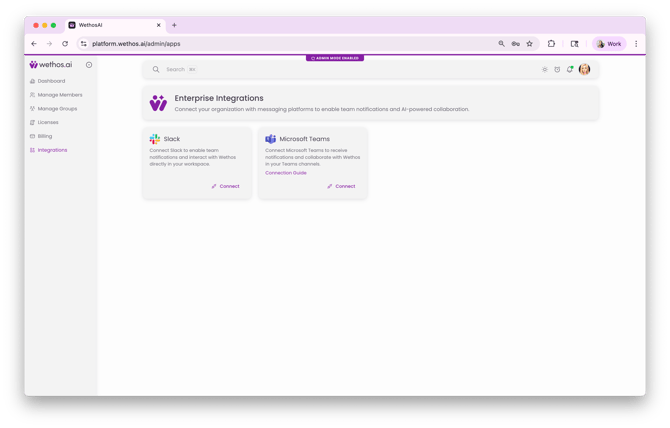
After configuring your feature toggles, navigate to the Integrations page from the left-hand navigation in the Admin panel. The Enterprise Integrations page lets you connect your organization with messaging platforms for team notifications and AI-powered collaboration.
Slack — Click Connect on the Slack card to begin the setup flow. You'll choose your Slack workspace, review permissions, and authorize the connection. Once connected, individual team members can add the WethosXO app to their own Slack sidebar. See the Connecting Slack to WethosAI admin guide for the full step-by-step walkthrough.
Microsoft Teams — Click Connect on the Microsoft Teams card to begin the integration. This enables notifications and collaboration with Wethos directly in your Teams channels. See the Microsoft Teams guide for specific instructions.
ADMIN PANEL AT A GLANCE
Beyond feature toggles, the Admin panel gives you access to several management areas:
Dashboard — The Wethos Usage Dashboard, providing insights into your organization's activity, engagement, and feature usage metrics. Includes Unique Users, Average Time Per User Per Day, User Engagement over the last 30 days (highlighting high frequency and power users), a Daily Users chart showing active users over the past 7 days, and a Key Feature Usage breakdown showing engagement distribution across Brainstorms, Groups, Know Others, and WethosXO. Use the time range selector to adjust the reporting period.
Manage Members — View all organization members with their Wethos Styles, last modified and last logged in dates, roles (Admin or Member), license status, and account status (Active, Pending, or Expired). Use the search bar to find specific members, add new members with the "+ New Member" button, export member data, or manage licenses.
Manage Groups — Create and manage Core Groups and Project Groups for your organization.
Licenses — View and manage subscription licenses for your team.
Billing — Access billing information and subscription details.
Integrations — Manage platform integrations such as Slack, Google Calendar, and Google Drive connections.
TIPS
Enable features before onboarding new team members so the full platform experience is available from day one.
Communicate with your team when you enable a new feature. Let them know it's available, what it does, and any steps they need to take on their end (like connecting their calendar or self-reporting assessment results).
Review your feature toggles periodically. As your organization's needs evolve, you may want to enable features that weren't relevant initially — like turning on the Comfort Index when your team grows or enabling DISC/MBTI after a company-wide assessment.
For questions about specific integrations setup (Slack, Google Calendar, Google Drive), visit the Integrations section of the knowledge base.