![wethos_icon_light-mode-nmcocwgai7dk3bq6c54sa7ubcw.svg]](https://24346244.fs1.hubspotusercontent-na1.net/hubfs/24346244/wethos_icon_light-mode-nmcocwgai7dk3bq6c54sa7ubcw.svg)
Brainstorms — Outcome-Driven Collaborative Workspaces
OVERVIEW
Brainstorms are time-bound, outcome-driven workspaces built for specific initiatives. While Groups provide the persistent structure for day-to-day team operations, Brainstorms enable agility and focus — uniting the right people across departments to achieve defined goals. Each Brainstorm is powered by AI-assisted behavioral insight, helping teams move from ideas to outcomes with speed, clarity, and balance.
Think of a Brainstorm as a mission-specific workspace. It has a clear objective, a defined set of participants, and built-in tools for discussion, document management, decision logging, and behavioral coaching. When the initiative is complete, the workspace and its decisions persist as a searchable record.
THE BRAINSTORMS DASHBOARD
When you navigate to the Brainstorms section, you land on a dashboard providing a high-level overview of all active and recent Brainstorms.
What You'll See
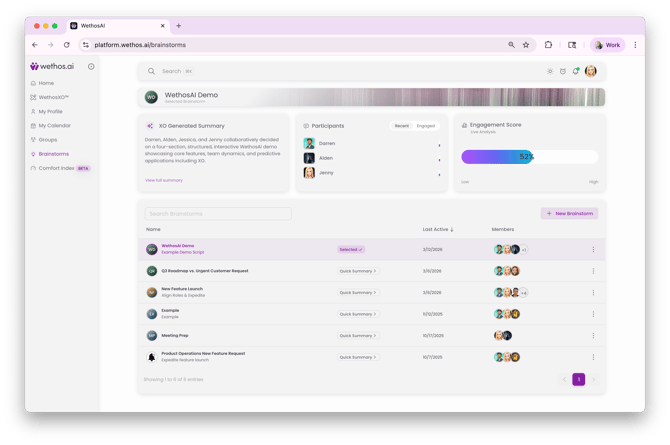
Brainstorm List — A table of all Brainstorms you have access to, showing titles, short descriptions, last active dates, and member avatars for quick context. You can search by name or keyword to quickly find a specific Brainstorm.
Selected Brainstorm Indicator — The currently open Brainstorm is highlighted and marked as "Selected" for clarity, with its details expanded in the panel above.
XO Generated Summary — A short, auto-generated summary of the selected Brainstorm showing what it's about, who participated, and recent updates. A "View full summary" link provides the complete overview.
Participants Panel — Shows who has engaged in the selected Brainstorm, with tabs for "Recent" and "Engaged" to see activity levels. This helps you quickly assess participation balance.
Engagement Score — A live activity indicator displayed as a percentage gauge (Low to High), showing how active and balanced participation is across members of the selected Brainstorm.
New Brainstorm Button — Allows you to initiate a new Brainstorm from anywhere on the dashboard.
INSIDE A BRAINSTORM
Once you select a specific Brainstorm, the interface shifts to a focused workspace that organizes people, insights, files, and discussion tools in one place.
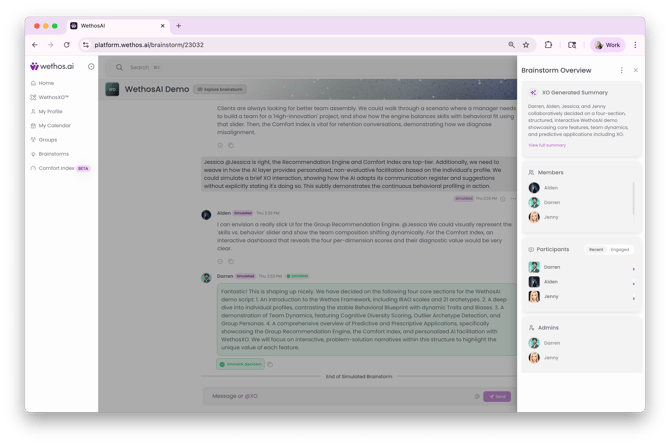
Brainstorm Overview
The overview panel displays the XO Generated Summary, the current path within the Brainstorm (showing parent and child workspaces), and quick access to any Breakouts that have been created within it.
Members and Participants
The left panel lists all members added to the Brainstorm. The Participants section shows engagement levels, distinguishing between those who have been recently active and those who have engaged most frequently. This visibility helps ensure balanced participation and flags when key voices may be absent from the discussion.
Conversation Area
The main workspace functions as a discussion thread. Team members can post updates, tag colleagues, share ideas, and ask XO for summaries, clarity, or next steps. The message bar supports tagging both teammates and @XO for behavioral coaching and analysis.
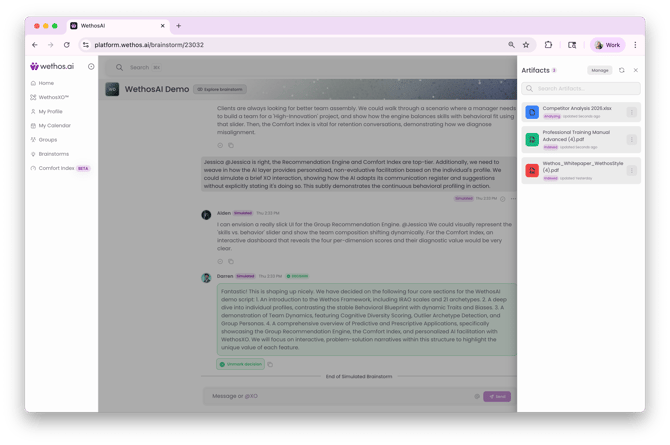
Artifacts
The Artifacts panel holds files, notes, and drafts relevant to the Brainstorm. You can upload documents, reference external files, and manage materials directly within the workspace. Artifacts keep everything in one place so the team isn't hunting through email or separate file systems.
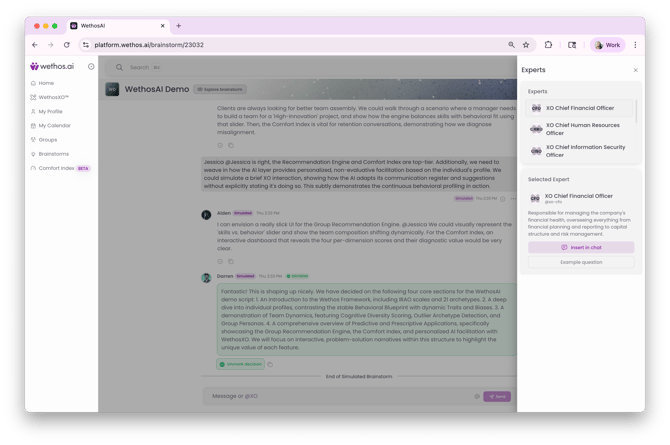
Experts
Brainstorms include an Experts panel that recommends relevant organizational roles or members who could contribute to the initiative. Each expert recommendation includes a title, description of their relevance, and an "Insert in chat" option to quickly bring their perspective into the conversation.
Breakouts
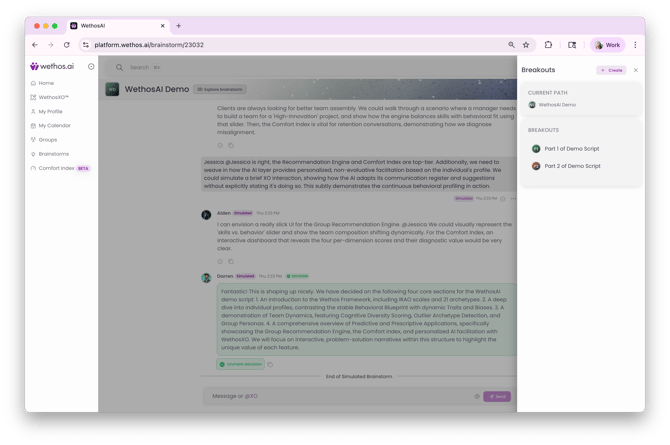
Breakouts are nested workspaces within a Brainstorm. When a subtopic needs deeper exploration, you can create a Breakout to tackle it with a smaller group without disrupting the main discussion thread. Breakouts are visible from the Brainstorm Overview and can be accessed directly. (See the separate Breakouts knowledge article for full details.)
Decisions Hub
The Decisions Hub is a cross-layer feature that captures and synthesizes key outcomes from your Brainstorm. It operates in two ways:
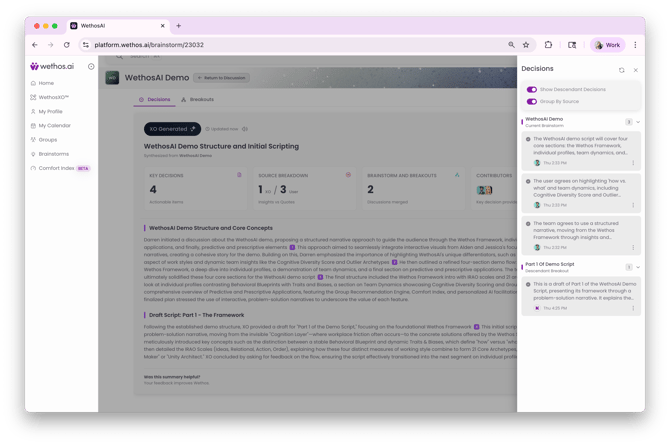
XO-Generated Decision Summaries — XO automatically analyzes the conversation thread and generates a synthesized decision summary. Each summary includes a title (e.g., "Approval of the Deconstructed Key Lime Pie Concept"), a note showing which discussions it was synthesized from, and four key metrics: the number of Key Decisions (actionable items), a Source Breakdown showing how many insights came from XO versus direct user quotes, the number of Brainstorms and Breakouts whose discussions were merged into the summary, and the Contributors who were key decision providers. Below the metrics, XO provides a detailed narrative explaining how the decision was reached, with numbered reference markers linking back to specific moments in the conversation. These summaries can be refreshed with the "Refresh Analysis" button and include an audio option. A "Was this summary helpful?" prompt with thumbs up/down lets you provide feedback to improve future summaries.
Manual Decision Marking — Team members can also mark specific messages as decisions directly from the conversation thread. When a message represents a key decision, it can be flagged and it appears in the Decisions panel with a green indicator.
The hub supports "Show Descendant Decisions" to surface decisions made in nested Breakouts, and "Group By Source" to organize them by where they originated. The Decisions tab sits alongside a Breakouts tab, making it easy to navigate between outcomes and the focused sub-discussions that contributed to them. This ensures that important outcomes are never buried in conversation threads.
KEY DESIGN PRINCIPLES
Unified Initiatives — Brainstorms are agile workspaces built to unite cross-departmental teams around specific goals, high-stakes decisions, or strategic meetings.
Nested Deep Dives — Breakouts provide nested workspaces for smaller groups to tackle sub-topics deeply without disrupting the main thread.
Decision Persistence — The Decisions Hub automatically synthesizes key outcomes using XO-generated summaries with source tracking, reference markers, and contributor attribution, while also allowing manual decision marking for permanent record and searchability.
Coherent Intelligence — WethosXO remains active across all layers, ensuring insights from deep-dive Breakouts are seamlessly captured and reintegrated into the parent initiative.
HOW TO CREATE AND USE A BRAINSTORM
- Create — Click "New Brainstorm" from the dashboard. Give it a clear name and set a specific objective so the workspace stays focused.
- Add Members — Search for and add the relevant colleagues. Consider using Recommend a Group first if you're unsure of the ideal team composition.
- Set the Objective — Define what the Brainstorm is meant to achieve so all participants share the same goal.
- Collaborate — Use the message bar to post updates, tag teammates, and ask XO for summaries, clarity, or next steps.
- Upload Documents — Add key files to the Artifacts panel to keep everything centralized.
- Create Breakouts — When a subtopic needs deeper exploration, spin up a Breakout rather than letting it derail the main thread.
- Log Decisions — Mark key messages as Decisions so important outcomes are captured and searchable.
COMMON USE CASES
- Running a structured strategy session for a quarterly initiative
- Coordinating a product launch across marketing, engineering, and design
- Making a high-stakes decision that requires input from multiple stakeholders
- Preparing for a board presentation with cross-functional contributions
- Debriefing after a major project to capture lessons learned
- Exploring a new market opportunity with diverse perspectives
TIPS
Set a clear objective when creating the Brainstorm. A focused goal keeps discussions on track and gives XO better context for its summaries and recommendations.
Use Breakouts proactively. Don't wait for the main thread to become cluttered — as soon as a subtopic emerges that needs focused attention, create a Breakout.
Check the Engagement Score regularly. If participation is unbalanced, consider reaching out to quieter members or using XO to surface ways to encourage broader contribution.
Mark Decisions as they happen. Don't wait until the end of the Brainstorm to go back and identify key outcomes — flag them in real time so nothing is lost.