![wethos_icon_light-mode-nmcocwgai7dk3bq6c54sa7ubcw.svg]](https://24346244.fs1.hubspotusercontent-na1.net/hubfs/24346244/wethos_icon_light-mode-nmcocwgai7dk3bq6c54sa7ubcw.svg)
WHAT ITS FOR
When you're facing a decision with competing priorities, limited resources, or multiple stakeholders with different perspectives — and you want to think it through before bringing it to the group. Simulate a Decision lets you run the conversation ahead of time with XO playing each participant based on their actual behavioral profile. It's useful for prioritization calls, strategic direction choices, resource allocation, org design questions, or any decision where you want to anticipate how the room will react.
HOW IT WORKS
From the dashboard, click "Simulate a decision." You'll walk through a five-step setup:
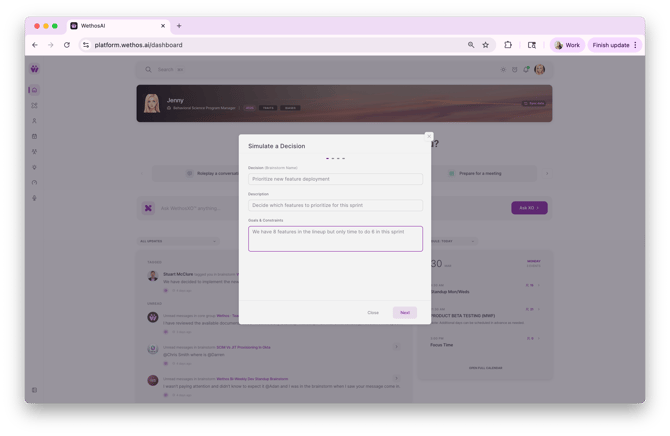
Step 1: Define the Decision
You'll fill in three fields:
Decision (Brainstorm Name) — Give it a clear name. Examples: "Prioritizing new feature releases," "Should we expand into the enterprise segment," "Q2 headcount allocation."
Description — Add context that helps XO understand the situation. What's the background? What's been tried? What triggered this decision now?
Goals & Constraints — What are you optimizing for, and what are the boundaries? For example: "10 features with only time for 8," "Need to ship by EOY, budget is limited," "Want the highest frequency use case with the clearest tie to behavioral intelligence."
Step 2: Add Colleagues
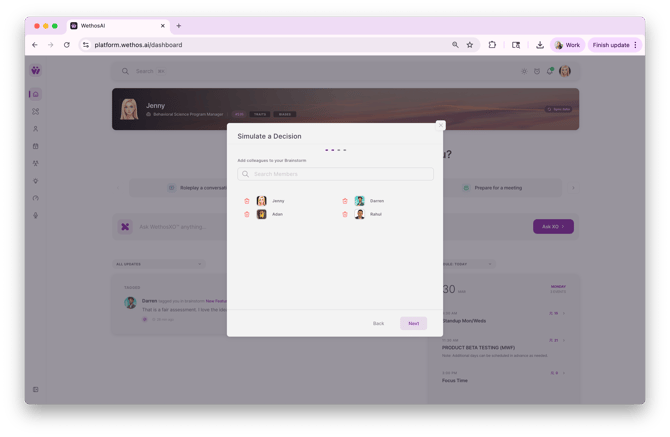
Search and add the people who should be part of this decision. These should be members on your Wethos platform so XO can access their behavioral profiles. The people you add will be simulated in the brainstorm — their perspectives will be generated based on how they actually think and communicate.
Step 3: Assign Brainstorm Admins
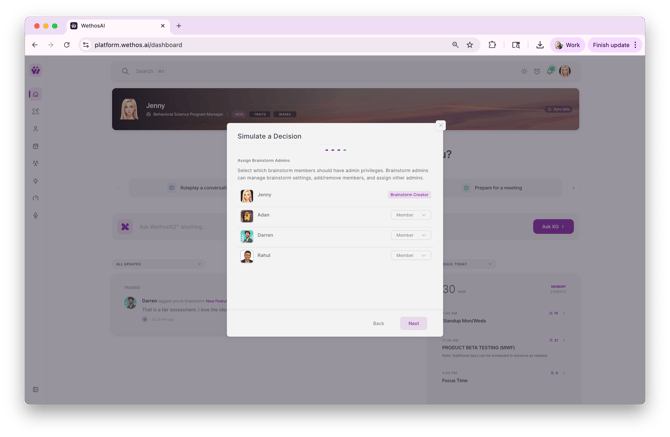
Choose which brainstorm members should have admin privileges. Brainstorm admins can manage settings, add/remove members, and assign other admins. The person who creates the brainstorm is automatically the Brainstorm Creator.
Step 4: Customize
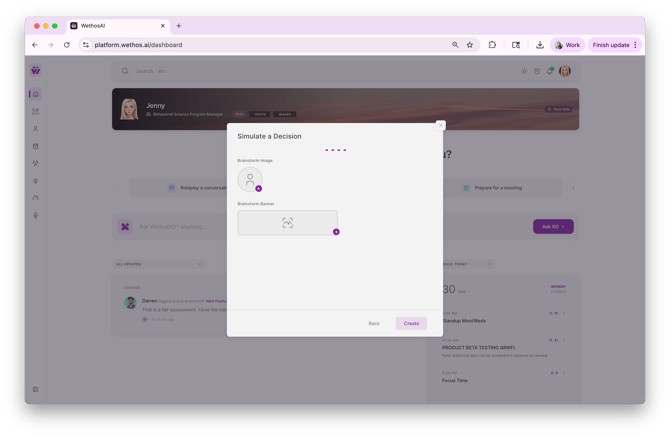
Optionally add a brainstorm image and banner to personalize the space. Then click Create.
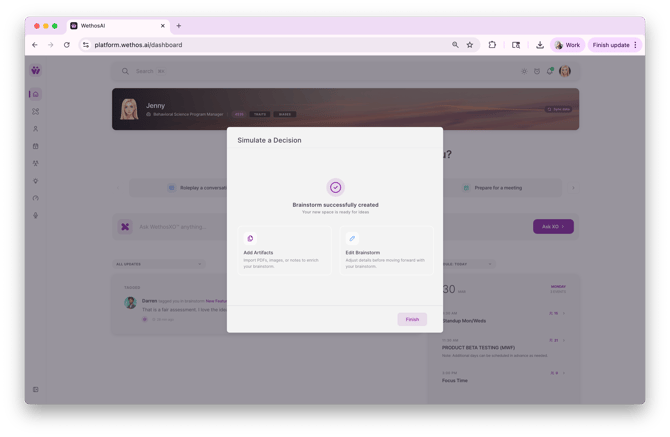
Step 5: Add Artifacts
Import PDFs, images, or notes to give XO more context. This could be a spreadsheet of options, a strategy doc, a competitive analysis, or anything else that informs the decision.
WHAT THE SIMULATION LOOKS LIKE
The brainstorm plays out as a conversation. Each participant is tagged as "Simulated" so it's always clear that XO is generating their perspective — not the actual person.
Each simulated participant weighs in based on their behavioral profile. Someone who's a big-picture visionary will focus on impact and possibilities. Someone who's detail-oriented and process-driven will push for specifics and feasibility. Someone with a high Optimism Bias might over-index on the upside while someone more risk-averse will flag what could go wrong.
When the group (simulated or otherwise) lands on a direction, any message can be marked as a Decision by XO or manually by you — highlighted in green with a "Decision" tag so it's easy to find later. Decisions can also be unmarked if the conversation evolves.
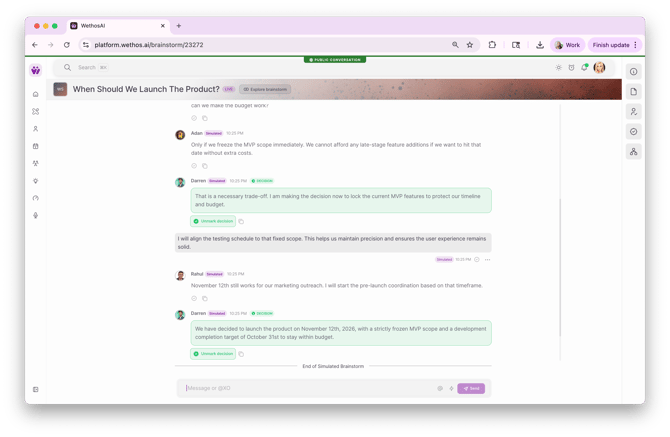
After the brainstorm simulation concludes, users can go back to messaging each other and @ mentioning XO to refine the direction or making any edits.
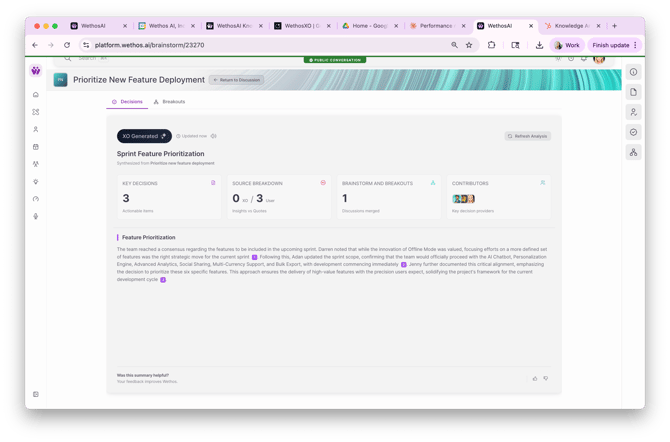
The brainstorm ends with a clear summary of what was decided, by who, and why.
TIPS FOR GETTING THE MOST OUT OF IT
- Be specific in your constraints. "Budget is tight" is less useful than "We can only build 8 of these 10 features this sprint." The more concrete the constraints, the sharper the simulation.
- Add artifacts. If you have a list of options, a spreadsheet, or a doc with context — upload it. XO will reference it directly in the conversation.
- Push back on the simulated participants. They're there to pressure-test your thinking. If a simulated perspective doesn't feel right, challenge it and see how XO adjusts after the simulations concludes.
- Use it before the real meeting. Run the simulation, see where the friction points are, and walk into the actual conversation with a plan for how to navigate them.