![wethos_icon_light-mode-nmcocwgai7dk3bq6c54sa7ubcw.svg]](https://24346244.fs1.hubspotusercontent-na1.net/hubfs/24346244/wethos_icon_light-mode-nmcocwgai7dk3bq6c54sa7ubcw.svg)
OVERVIEW
WethosAI offers enterprise SSO via SAML, which involves adding WethosAI as a custom SAML application in your identity provider's environment. This works with any SAML-compatible identity provider — including Okta, Azure AD, OneLogin, and others. While this isn't a self-service process yet, the WethosAI team can get you up and running quickly.
A few things to know upfront:
- Provisioning: We do not currently support any provisioning. Users must have an existing account in the WethosAI platform to log in via SSO.
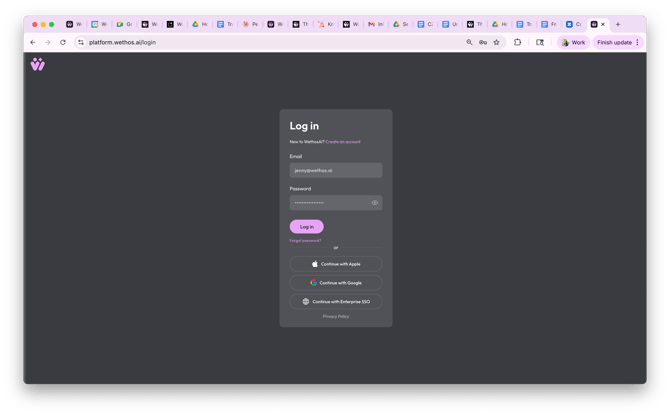
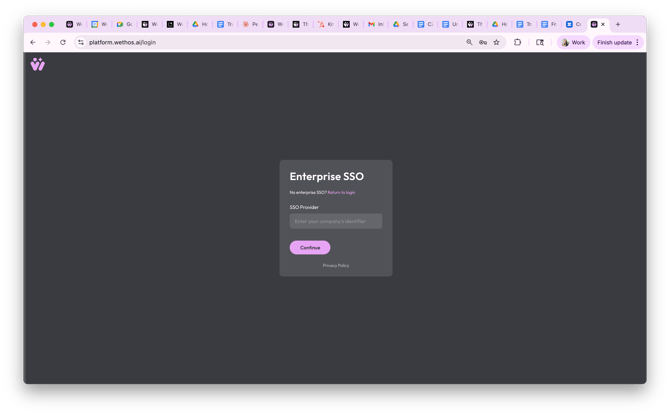
- SSO Flow: We currently support SP-initiated SSO. Users will navigate to the WethosAI login page and enter your company domain to be redirected to your identity provider for authentication.
HOW SSO LOGIN WORKS
WethosAI uses SP-initiated SSO. That means users start at the WethosAI login page, select the SSO option, enter your organization's SSO identifier (typically your company domain), and are redirected to your identity provider for authentication. Once authenticated, they're signed in to WethosAI.
ENABLING OKTA SSO
Okta SSO is set up in coordination with the Wethos team. Here's what the process looks like:
What your IT team does:
- Create a new custom SAML application in your Okta environment for WethosAI
- The WethosAI team will provide you with the following configuration details:
- SSO URL (Recipient and Destination): Provided by WethosAI
- Audience URI: Provided by WethosAI
- Default RelayState: No value
- Name ID format: Unspecified
- Application username: Email
- Update application username on: Create and update
- Configure the attribute mappings:
- given_name = user.firstName
- family_name = user.lastName
- email = user.email
- All other settings should remain at their default values
- Once configured, send the Metadata URL from your Okta SAML application back to the WethosAI team
What the WethosAI team does:
- Provides your IT team with the SSO URL, Audience URI, and attribute mapping details
- Takes the Metadata URL you provide and finalizes the connection on the WethosAI side
- Creates your SSO identifier — this is the value your users will enter in the SSO login box on the WethosAI sign-in page
- Confirms everything is connected and ready for your team to log in
What your users do: Once setup is complete, users go to the WethosAI sign-in page, select the SSO option, enter your organization's SSO identifier, and authenticate through your identity provider. They can also access WethosAI directly from the WethosAI tile in their identity provider's dashboard if configured.
The setup process typically requires a short coordination call or email exchange between your IT team and the WethosAI team. Reach out to your customer success contact to get started.
ADDING NEW USERS
Currently, adding new users to WethosAI through SSO involves a few steps:
Step 1: Provision in your identity provider — Your IT admin assigns the user access to the WethosAI application. This ensures they can authenticate through SSO.
Step 2: Create the WethosAI profile — The user also needs a corresponding profile in WethosAI. This can be done in a couple of ways:
- Your WethosAI admin sends the user list to your WethosAI customer success contact, who provisions them on the WethosAI side. This ensures the user can log in through SSO seamlessly from the start.
- Your WethosAI admin invites the user directly from the member management area in the platform. This sends them a username/password invite. The user can then sign in through the SSO option on the login page, but the initial invite email will come as a standard username/password notification rather than an SSO-specific one.
Either path gets the user to the same place — a WethosAI profile that they can access through SSO. The first option is cleaner from a user experience standpoint.
WHAT ADMINS NEED TO KNOW
User provisioning is currently manual. When a new team member joins your organization or needs access to WethosAI, they need to be added both in your identity provider (on your side) and in WethosAI (either by your admin or by your WethosAI customer success contact). There is no automated sync between your identity provider and WethosAI at this time — adding someone in your identity provider does not automatically create their WethosAI profile, and adding someone in WethosAI does not automatically grant them SSO access.
Email domain support depends on your identity provider configuration. Whether users across multiple email domains can authenticate through SSO depends on how your identity provider is configured on your end. Work with your IT team and your WethosAI customer success contact to ensure your setup supports your organization's domain structure.
Email changes don't break profiles. If a user's email address changes — for example, due to an entity change or domain migration — their WethosAI profile is not lost. Users can update their email in their profile, and a separate recovery email is also available. An email change does not override or replace the existing profile.
License types matter. Users may have different license types (e.g. full vs. trial). If a user is experiencing access issues, it's worth checking their license type in the WethosAI admin panel. Your WethosAI customer success contact can help resolve any license discrepancies.
RECOMMENDED WORKFLOW FOR NEW USERES
Until automated provisioning is available, the recommended workflow is:
- The new user (or their manager) requests WethosAI access through your internal process
- Your IT admin provisions them in your identity provider by assigning the WethosAI application
- Your WethosAI admin notifies your WethosAI customer success contact with the new user's details
- The WethosAI team provisions their profile
- The user logs in through the SSO option on the WethosAI sign-in page or through the WethosAI tile in their identity provider's dashboard
For urgent one-off additions, your WethosAI admin can also invite the user directly from the member management area in the platform and have them log in via the Okta SSO option on the sign-in page.
OFFBOARDING AND LICENSE MANAGEMENT
When a team member leaves your organization or no longer needs access, removing them from the WethosAI application in your identity provider will prevent them from authenticating through SSO. Note that they could still log in with a username and password if one was set up, so to fully deactivate their access, notify your WethosAI customer success contact or deactivate them from the admin panel.
For organizations with significant employee movement, consider establishing a regular cadence (e.g. monthly) of reviewing your user list with your WethosAI customer success contact to ensure active licenses match your current team.
NEED HELP?
If you're setting up Okta SSO for the first time, experiencing access issues, or need to provision new users, reach out to your WethosAI customer success contact. For immediate user access issues, you can also invite users directly from the member management area in the WethosAI admin panel.