![wethos_icon_light-mode-nmcocwgai7dk3bq6c54sa7ubcw.svg]](https://24346244.fs1.hubspotusercontent-na1.net/hubfs/24346244/wethos_icon_light-mode-nmcocwgai7dk3bq6c54sa7ubcw.svg)
Meet the New Wethos Dashboard
The new dashboard is designed to get you into the flow of work immediately. Previously, the home page was a series of prompt cards — useful for exploring what XO could do, but not built around how you actually work. The new dashboard changes that. It puts guided workflows, your schedule, and your updates in one place so you can dive right in from the moment you log in.
And this is just the beginning — the dashboard will continue to expand with more workflows over time.
Here's what's new and how to use it.
YOUR DASHBOARD AT A GLANCE
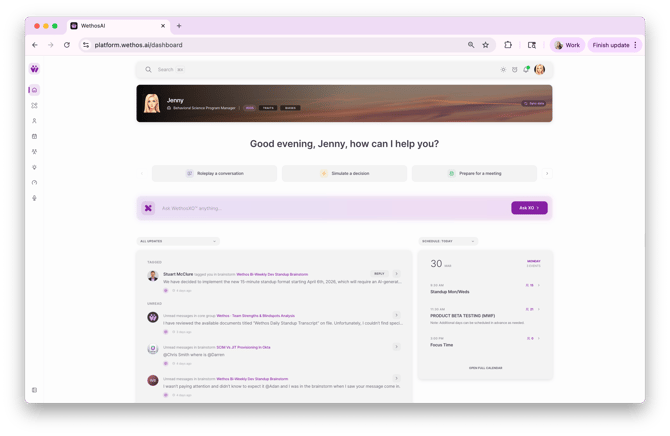
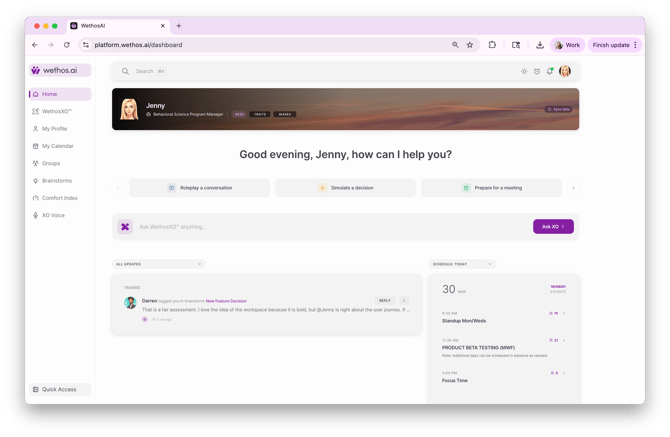
When you log in, you'll be greeted by name with a personalized home screen built around your day.
Your profile banner sits at the top with your name, role, Wethos Style, and quick access to your Traits and Biases. You can also sync your data from here.
Workflow cards sit front and center. These are one-click entry points into guided workflows powered by XO. Scroll through them with the arrows to find the right one for what you're working on.
Ask WethosXO™ is always available right below the cards. Type any question or request and hit "Ask XO" — no need to navigate anywhere else.
All Updates on the left shows your latest tags, messages, and activity. When there's nothing new, you'll see "All caught up."
Schedule: Today on the right shows your calendar for the day — meeting times, participant counts, and event details at a glance. Click "Open Full Calendar" to see the full view.
WORKFLOW CARDS
The dashboard features guided workflows that help you navigate common workplace moments with behavioral intelligence built in. Each card opens a structured flow where XO walks you through the process.
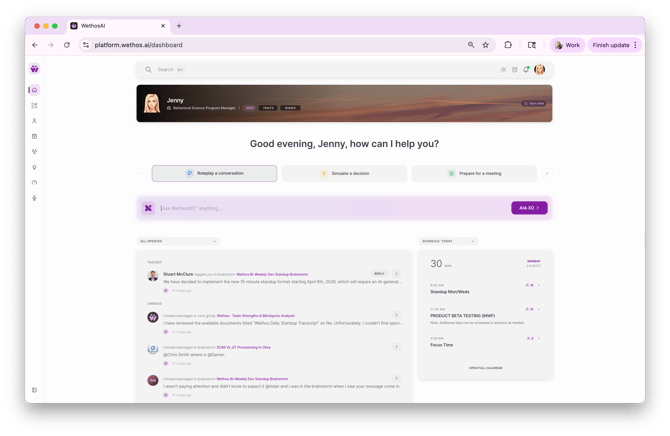
Roleplay a Conversation
Practice any conversation before it happens — a performance review, a pitch for buy-in, a difficult feedback session, or a negotiation.
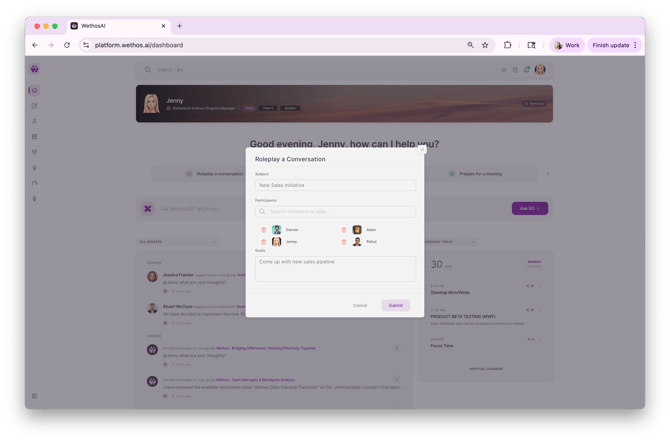
When you click this card, you'll fill in three things: the subject of the conversation, the participant(s) you want to practice with, and your goals. XO then sets the stage by analyzing how you and the other person naturally approach these types of conversations. You'll see a dynamics breakdown comparing you both across areas like information processing, interpersonal focus, approach to action, and structure — so you understand where you align and where you might clash.
From there, XO gives you a tailored guide on how to approach the other person based on their specific behavioral profile — what to lead with, what they value, and what biases to watch for on both sides. Then XO drops you into a roleplay prompt, playing the other person in a way that reflects how they actually communicate, and you practice the exchange back and forth. It's a private conversation — only you can see it.
Simulate a Decision
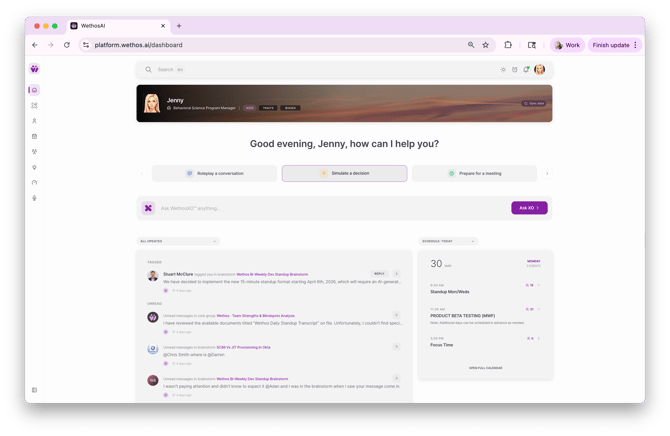
Work through a tough decision with your team before you commit. This is built for moments where there are competing priorities, limited resources, or strong opinions pulling in different directions.
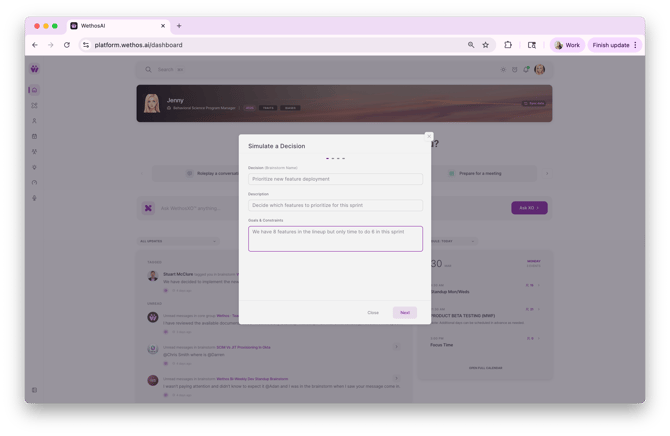
When you click this card, you'll walk through a five-step setup.
1. First, you'll name the decision, add a description, and outline your goals and constraints.
2. Next, you'll add colleagues to the brainstorm — these are the people involved in the decision, and XO will simulate their perspectives based on their behavioral profiles.
3. You can then assign brainstorm admins to manage the session.
4. Finally, you can customize the brainstorm with an image and banner before creating it.
5. Optionally, you can add artifacts to the brainstorm.
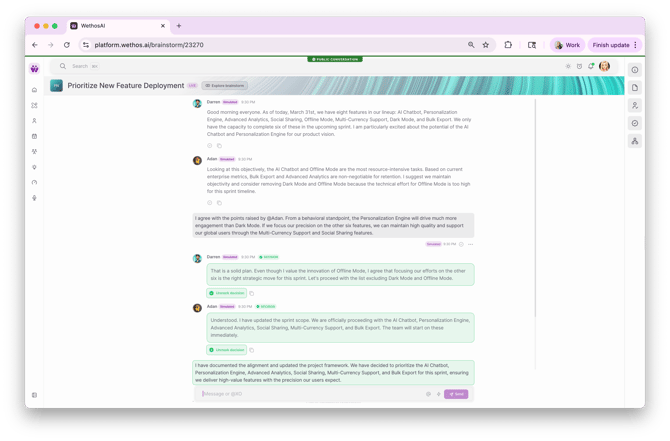
XO runs a simulated brainstorm where each participant's perspective is informed by their actual behavioral profile. The conversation plays out with each person weighing in naturally, and XO can mark key moments as decisions. Participants are tagged as "Simulated" so it's clear XO is generating their perspectives. Once the simulation concludes, you can @XO to steer the discussion, push back, or ask for a different angle or comment to your team.
Prepare for a Meeting
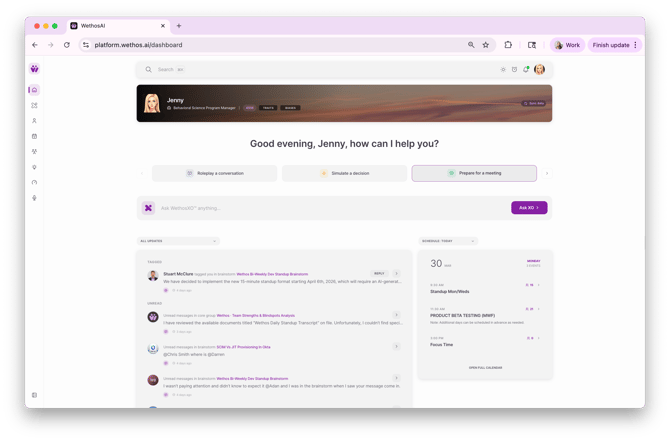
Walk into any meeting with context and a plan. When you click this card, it pulls your calendar and shows your scheduled events for the day. Select the meeting you want to prepare for and you'll see the meeting name, participant list, and who's internal versus external — along with their Wethos Style for internal members.
Click "Start Preparing" and XO generates a private meeting prep that includes the meeting details (time, duration, participants), a behavioral breakdown of the key people in the room, and personalized advice on how to approach the meeting based on the group dynamics. For example, XO might tell you that two participants lean heavily toward big-picture vision, so you should frame your updates around strategic impact — while another participant prioritizes data-backed precision, so you'll want a clear roadmap ready for them.
XO also suggests follow-up prompts at the bottom so you can keep the preparation going — asking for general tips, exploring how to prepare for similar meetings in the future, or learning about other Wethos features that can help.
.png?width=670&height=441&name=Untitled%20design%20(25).png)
Week at a Glance
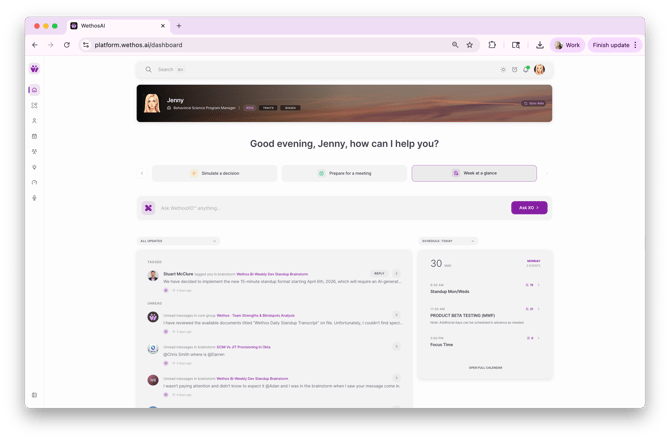
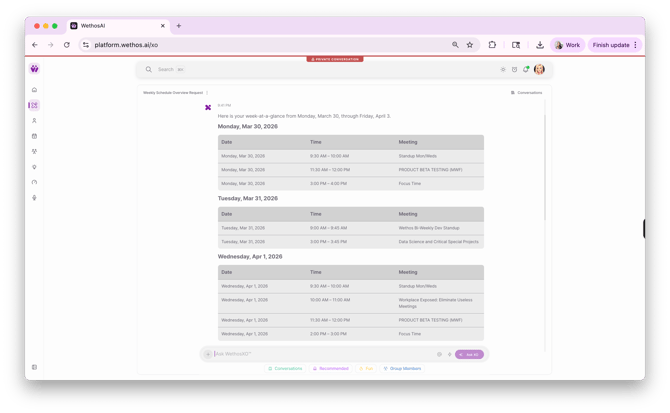
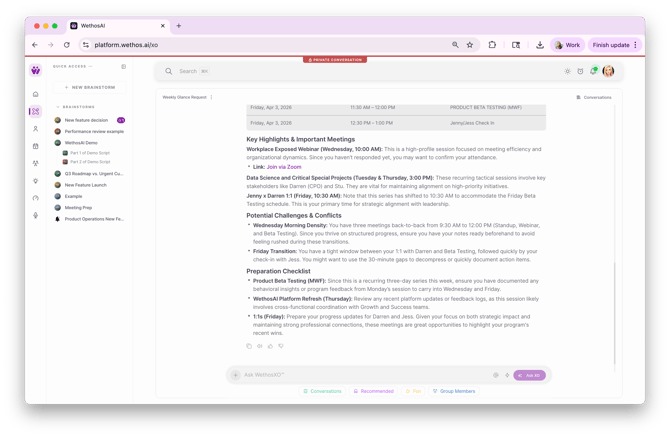
Get a full picture of your week ahead. When you click this card, XO pulls your calendar and generates a comprehensive weekly overview that includes your full schedule in a table format, key priorities and preparation notes (flagging important meetings, recurring sessions, and upcoming 1:1s), and potential challenges and conflicts — like back-to-back meeting blocks or scheduling overlaps you might want to get ahead of. XO also factors in your behavioral profile, so the recommendations are personalized to how you work best.
TRAITS & BIASES
We've launched a dedicated view for your behavioral profile — the engine behind everything XO does across the platform.
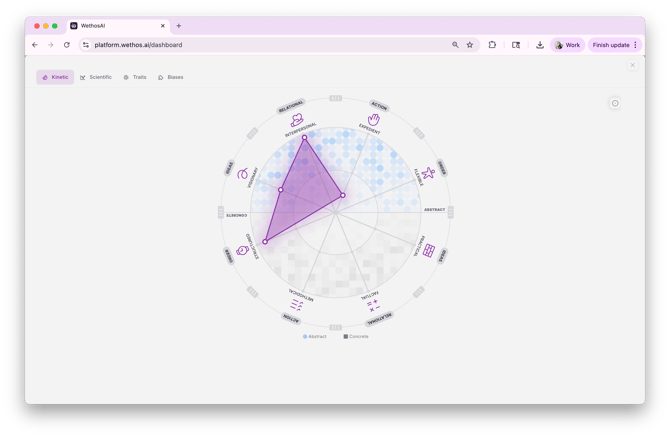
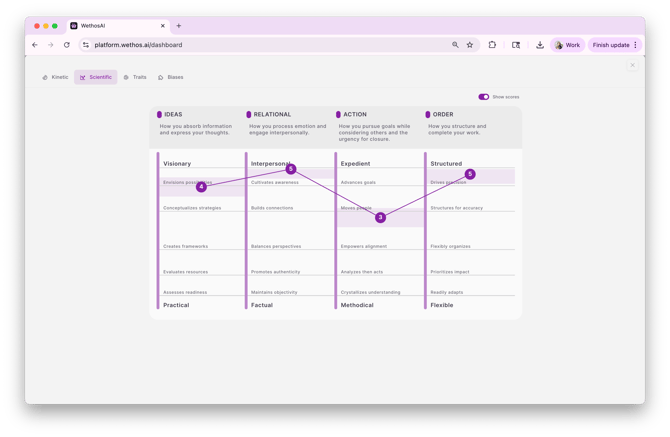
Previously, you could ask XO about your traits and biases and it would generate a summary. That was useful but hard to track over time. Now there's a dedicated section with four tabs:
Kinetic — Your behavioral patterns as a radar chart.
 Scientific — The research-backed frameworks behind your profile.
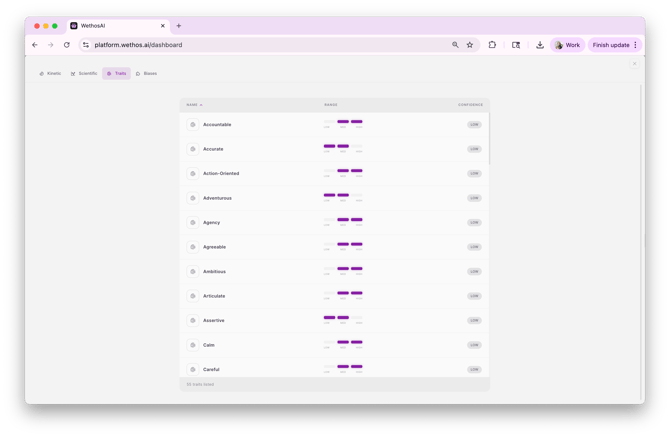
 Traits — Your full list of identified traits. Each trait shows a range across Low, Med, and High, along with a confidence level indicating how certain the system is based on what it's observed. For example, "Accurate" might show a range concentrated in Low to Med, while "Action-Oriented" spans Med to High.
Biases — Your full list of identified cognitive biases. Same format — each bias has a range and confidence level. For example, you might see "Anchoring Bias" ranging across Med to High with Low confidence, meaning the system has seen signals but needs more data to be sure.
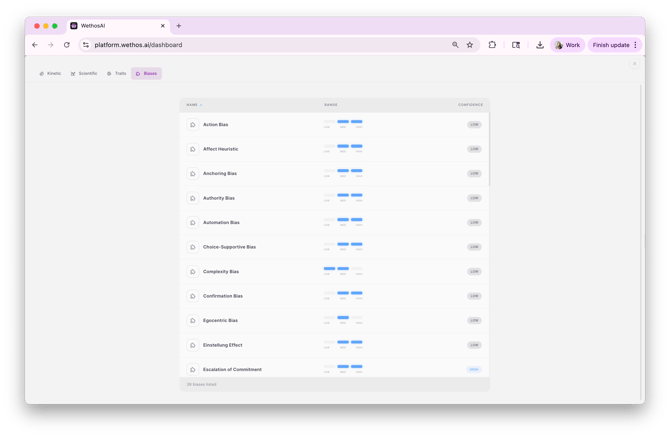
What the range and confidence tell you: The range shows where a trait or bias tends to show up — some are narrow and consistent, others are wide and context-dependent. The confidence level (Low, Med, High) reflects how much evidence the system has gathered to support the assessment. As you use the platform — specifically uploading meeting transcripts — new traits and biases will continue to populate on your profile, and the confidence level on existing ones will increase as more evidence accumulates. Early on, you may see mostly Low confidence across the board. Over time, as the system observes more of how you show up, those levels will climb and your profile will become a richer, more accurate picture of your behavioral patterns.
How to use it: You can ask XO to analyze your patterns from this view — when does a particular bias show up most? Which traits are stable versus situational? Over time, you can track how your profile evolves. If you've been working on making faster decisions, you might see your Decisiveness range shift or your Action Bias confidence increase. That's measurable behavioral growth, not just a one-time assessment.
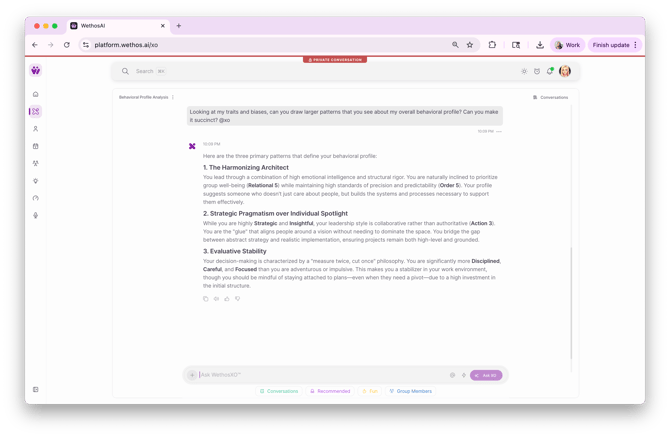
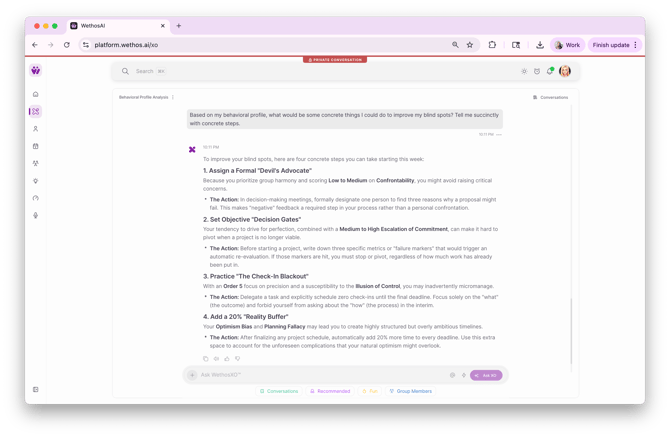
Try asking XO to design a development plan specifically tailored for you:
LEFT SIDEBAR NAVIGATION
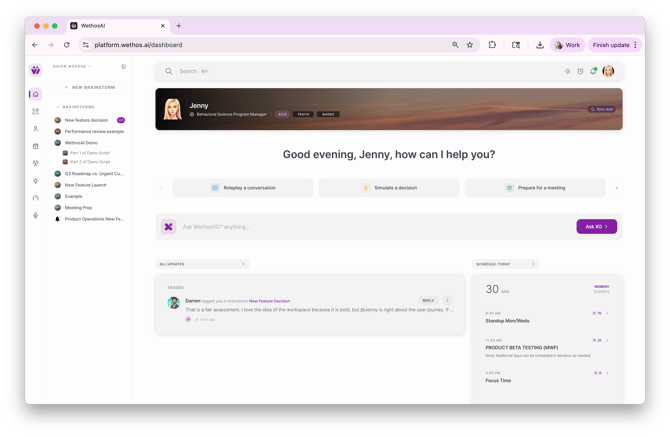
The sidebar navigation has been updated to use icons by default, with labels appearing on hover. The same sections you're used to are all still there — Home, WethosXO™, My Profile, My Calendar, Groups, Brainstorms, Comfort Index, and XO Voice — the layout is just cleaner and takes up less space.
At the bottom of the sidebar in a hover state, you'll find Quick Access — click it to expand a panel with all your brainstorms, including a shortcut to create a new one. This gives you fast access to any brainstorm without leaving the dashboard.
GETTING STARTED
The new dashboard is live for all users. Log in and you'll see it right away — no setup required. Your existing brainstorms, groups, and conversations are all still where they were. The dashboard is a new starting point that gets you into the work faster, and it will continue to grow with new workflows as we build them.
If you have questions or feedback, reach out to our team — we'd love to hear what's working and what you'd like to see next.