![wethos_icon_light-mode-nmcocwgai7dk3bq6c54sa7ubcw.svg]](https://24346244.fs1.hubspotusercontent-na1.net/hubfs/24346244/wethos_icon_light-mode-nmcocwgai7dk3bq6c54sa7ubcw.svg)
NAVIGATING THE COGNITIVE TWINS HOME PAGE
To get started, select cognitive twins from the left-hand sidebar of your platform.
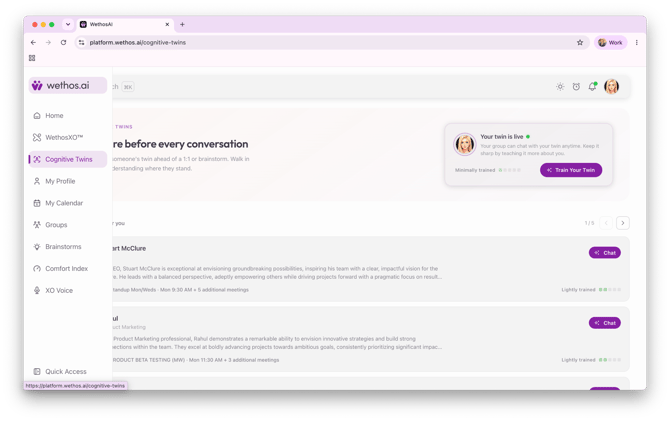
The home page is structured into three main areas, designed to help you quickly assess your twin's status, prepare for upcoming events, or find specific team members.
The Hero Banner (Top)
This section keeps you updated on features and your twin's current status.
- Your Twin Status Card: Located on the right side of the hero banner, this card features a green status dot indicating when your twin is live. It also hosts the primary Train Your Twin button to quickly access your customization dashboard.
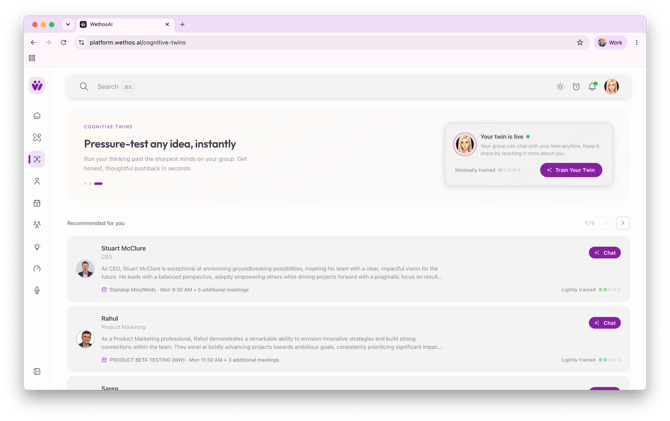
"Recommended for You" (Middle)
This section features a horizontal, scrollable carousel of teammate cards.
- Smart Recommendations: The platform syncs with your calendar to identify upcoming events (for example, "Launch sync · Thursday 10:00 AM").
- Quick Navigation: Use the left and right navigation arrows to flip through your upcoming preparation opportunities, keeping track of your spot with the page indicator (such as "1 / 3").
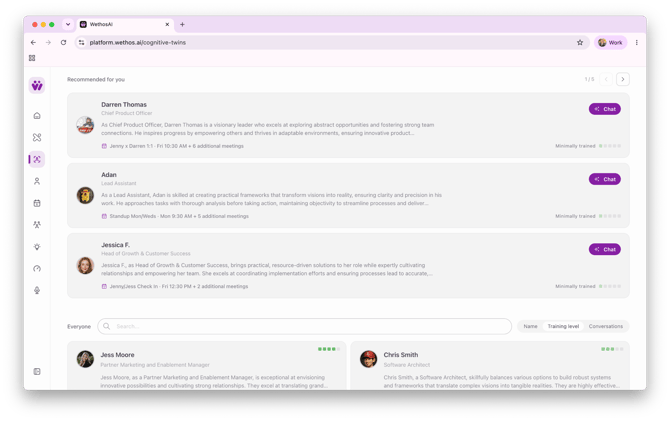
"Everyone" Directory (Bottom)
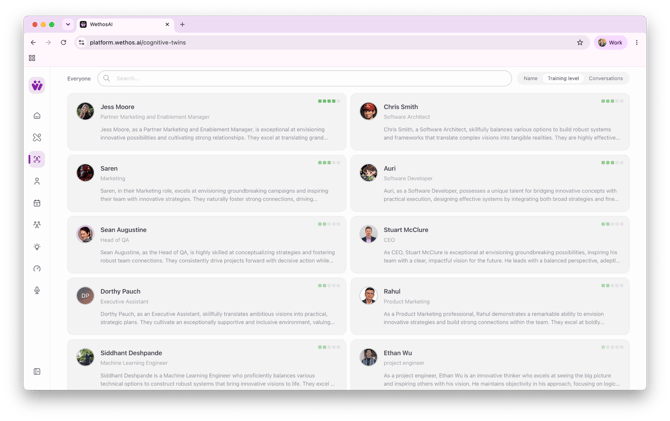
This is your searchable, sortable directory grid of all team members. You can find colleagues quickly using the search bar, or sort them using three tabs:
- Name: Alphabetical listing of teammates.
- Training level: Sorts by how thoroughly a teammate has built out their twin's background and files.
- Conversations: Organizes the grid based on your most recently consulted twins.
CONSULTING A TEAMMATE'S TWIN
Consulting a colleague's twin is a powerful way to prepare for meetings, especially when working with cross-functional partners or team members you do not interact with on a daily basis.
Step-by-Step Preparation Workflow
- Navigate to the Everyone directory or find a smart recommendation in the Recommended for you carousel.
- Click on the teammate's card. This opens their profile page directly to the Twin tab, highlighted by a distinctive sparkle icon.
- If you accessed the twin via a calendar recommendation, a tailored preparation prompt based on your upcoming meeting will automatically populate in the message box.
- Click send to initiate the chat. The twin's response will stream in dynamically.
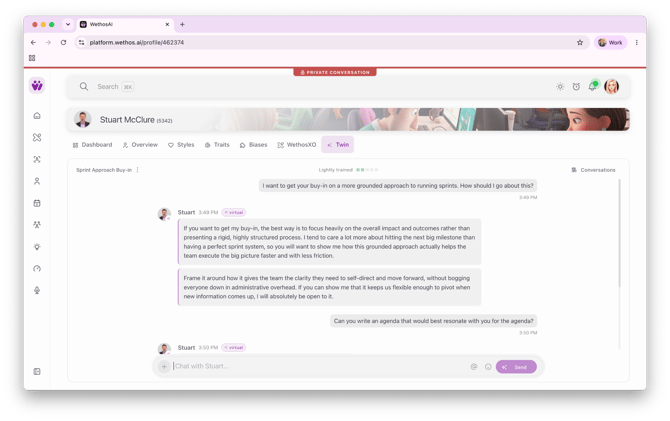
Interacting with the Conversational Interface
Because the twin is a conversational partner, you do not need to rely on one-off queries. You can ask natural follow-up questions to dig deeper into their preferences. For example:
- Initial Prompt: "I have a meeting with you on Thursday to discuss launch outreach. How should I prepare?"
- Follow-up Prompt: "What topics should I bring up?"
- Follow-up Prompt: "How do you prefer people to communicate with you?"
- Follow-up Prompt: “Can we role play the conversation so I can be as prepared as possible?”
BUILDING AND TRAINING YOUR OWN COGNITIVE TWIN
Your twin is a professional representation of your working style, and its responses get sharper and more accurate the more context you provide.
First-Time Setup
When you click Train Your Twin on the hero banner, you are taken to the Twin tab of your own profile. If you are launching this for the first time, an onboarding carousel will guide you through the core concepts:
- Train Your Cognitive Twin: An introduction to how your twin works.
- Teach It By Talking: Explains how conversational training works.
- Upload Your Knowledge: Highlights the benefit of importing professional files.
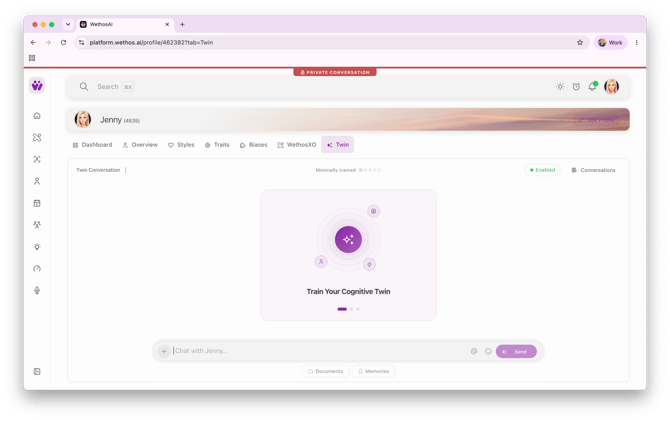
Interactive Training Methods
You can train your twin in two main ways:
Document Uploading
Directly share professional guidelines, communication preferences, or planning templates.
- Click the Documents button (represented by the folder icon directly beneath the message box).
- Drag and drop your files (such as a PDF, TXT, or markdown document) into the upload area.
- Once the upload confirms, close the dialog. Your twin will immediately analyze the file to understand your structured working style.
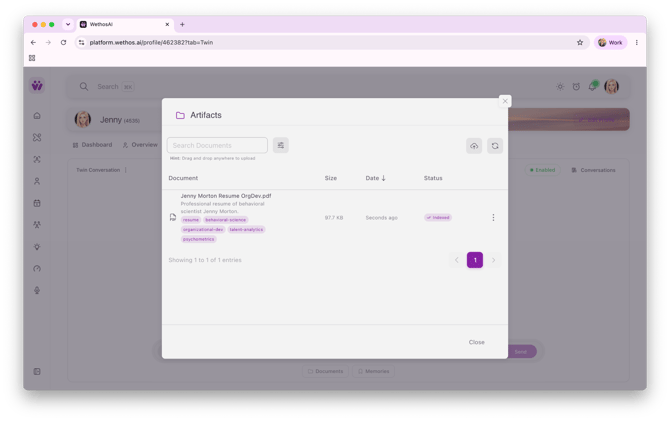
Conversational Training & Memory Saving
You can teach your twin rules, habits, and instructions simply by speaking to it.
- Type a guiding principle directly into your training chat. For example: "Remember that I prefer concise project updates with clear next steps."
- Send the message. Your twin will process the instruction, and a Memory saved confirmation will appear on screen, verifying that the preference has been successfully added to its baseline knowledge.
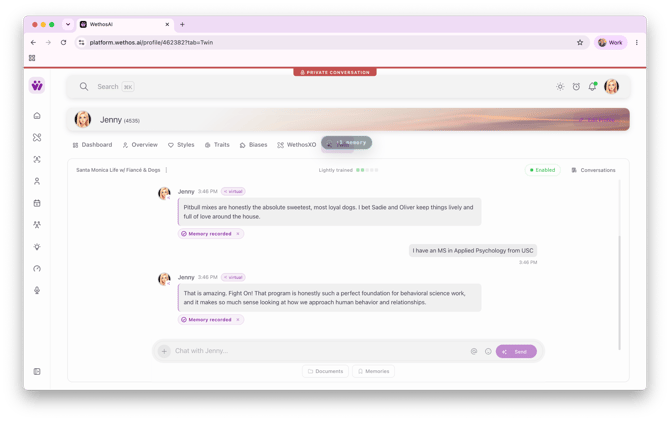
MANAGING YOUR TWIN, CONTROL & PRIVACY
You maintain absolute ownership and control over your digital twin, including what it knows, when it is active, and who can interact with it.
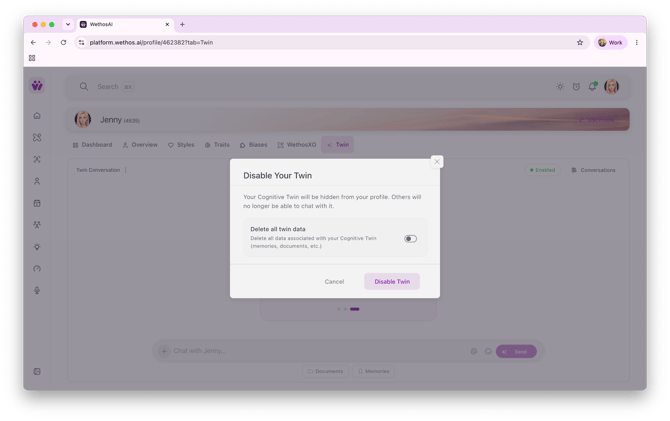
The Status Toggle (Enabled / Disabled)
Located at the top-right of your twin's chat header is the master status switch.
- Enabled: Your twin is active, live, and can be consulted by teammates in the directory.
- Disabled: Your twin is taken offline. If colleagues attempt to consult your twin, they will see that it is currently unavailable.
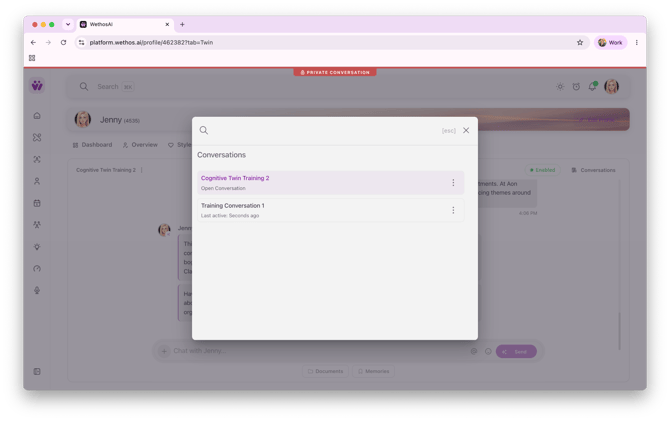
Reviewing Conversation History
Click the Conversations button in your chat header to review past interactions, helping you keep track of your training history and past discussions.
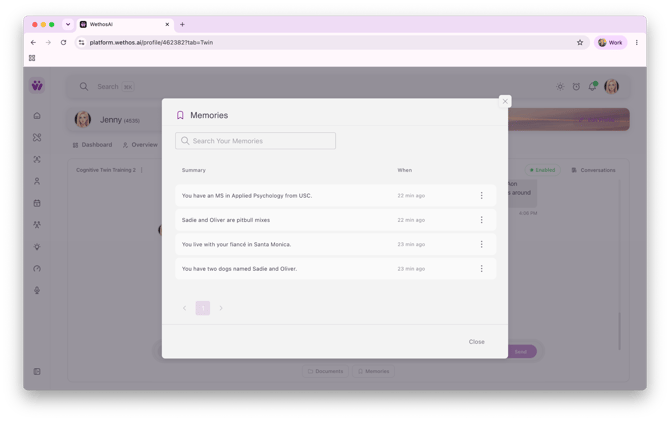
Managing Saved Memories (at the bottom)
You can view and modify everything your twin has committed to memory at any time.
- Click the Memories button (represented by the icon beneath the message box).
- This opens a dedicated dialog listing all saved memories.
- To remove an outdated memory, click the three dots and then click the delete button. The memory is immediately purged, and your twin's memories will adjust in real time.
Ironclad Privacy Guardrails
- Private Direct Consultation: All conversations you have with a colleague's twin are completely private. The colleague is never notified of what you asked and does not receive chat transcripts.
- Private Training Environment: Your direct training chats with your own twin, along with any documents you upload, are strictly confidential. Teammates cannot download or view your uploaded files; they only interact with the high-level collaborative advice your twin generates based on those files.
Click here to start training your twin today!