![wethos_icon_light-mode-nmcocwgai7dk3bq6c54sa7ubcw.svg]](https://24346244.fs1.hubspotusercontent-na1.net/hubfs/24346244/wethos_icon_light-mode-nmcocwgai7dk3bq6c54sa7ubcw.svg)
WELCOME
Welcome to WethosAI. This guide walks you through everything you need to get set up and start getting value from the platform in your first week. By the end, you'll have your Wethos Style, an understanding of your profile and team, and a handful of habits that will make WethosAI part of how you work every day.
BEFORE YOU BEGIN
You should have received an email invitation from your organization admin with a link to join the WethosAI platform. Click the link to create your account and log in. If your invitation has expired, ask your admin to resend a reactivation link.
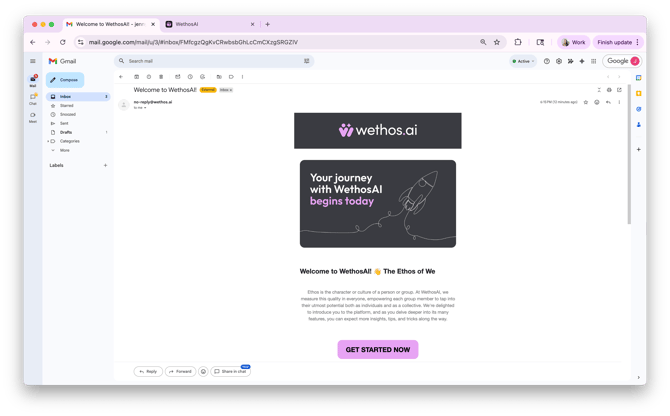
STEP 1: CREATE AN ACCOUNT & COMPLETE YOUR ASSESSMENT
The first thing you'll do is fill out your information and then establish your Wethos Style — the four-digit behavioral code that powers every insight, coaching prompt, and team analysis on the platform. You have three options:
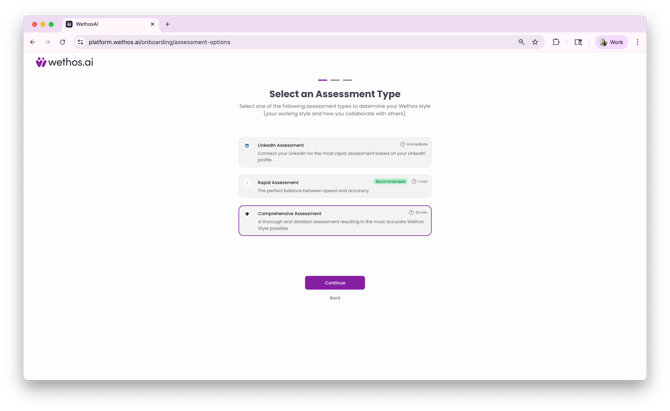
LinkedIn Profile Connection — Connect your LinkedIn for instant results. This is the fastest path. Your profile data is analyzed to generate an initial Wethos Style with zero time investment.
Rapid 8-Question Assessment (1 minute) — A short, focused assessment that balances speed and accuracy. Great if you want something more personalized than LinkedIn but don't have 10 minutes right now.
Comprehensive 84-Question Assessment (10 minutes) — The most detailed option. Produces the richest, most nuanced understanding of your working style. If you can invest the time, this is the recommended path. We recommend the 84 question for the most comprehensive results.
All three options produce a valid Wethos Style. Your profile will continue to deepen over time as more data flows in through meeting transcripts and platform interactions, regardless of which path you choose.
Tip: Answer assessment questions based on how you naturally behave, not how you think you should be. The platform is designed to work with your authentic style, not an idealized version of it.
Your assessment results in a unique 4-digit code representing your behavioral preferences across four scales. You can click through the onboarding steps to learn what each digit means. At the end of the onboarding flow, you'll be prompted to watch a 2-minute video — we strongly recommend watching it to get an overview of the platform before diving in.
STEP 2: EXPLORE YOUR PROFILE
Once your assessment is complete, head to My Profile from the left-hand navigation. This is your personal insights hub. Take a few minutes to explore what's there:
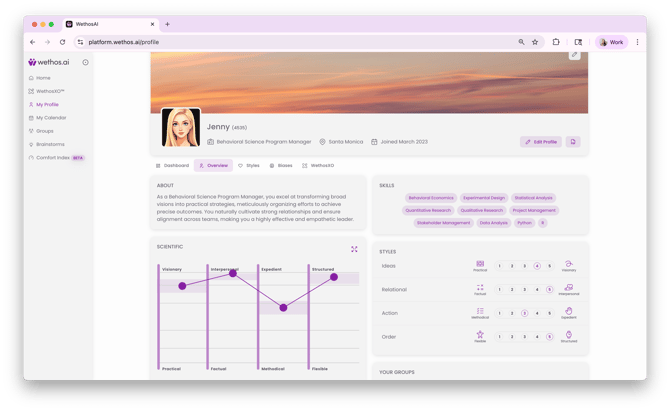
Your About Summary — Read the AI-generated paragraph describing your strengths and working style. This is how the platform understands you, and it's the foundation for all the coaching and insights you'll receive.
Your Wethos Style Graph — Look at your results across the four scales: Ideas, Relational, Action, and Order. Hover over each scale to see what your specific result means.
What This Means for You: There are no "good" or "bad" styles — each has unique strengths. Your numbers show natural preferences, not limitations. You can adapt and flex when needed. Understanding your style helps you work more effectively with others.
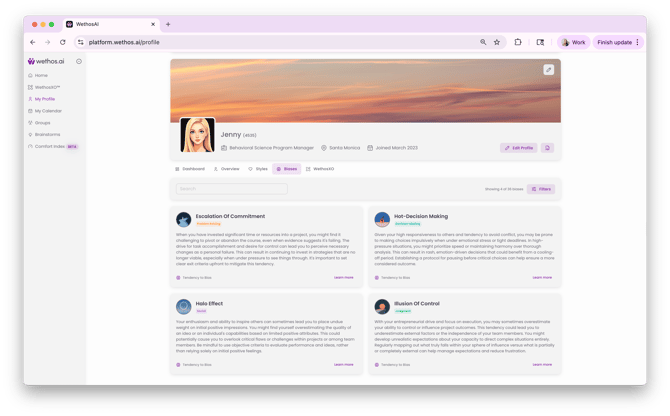
Your Biases Tab — Review the cognitive biases identified from your assessment. These are the mental shortcuts you're most prone to. Each card includes a description and a "Learn More" link for deeper exploration. The Biases tab shows your initial assessment results — for enriched, up-to-date data from transcript analysis, ask WethosXO directly.
Your Skills — View the auto-suggested skills linked to your role. These are used by the platform's team formation and Brainstorm features to match you with relevant projects and teams.
Your Groups — If your admin has already set up your team, you'll see your Groups listed here. Click through to explore.
Tip: Your profile isn't a one-time setup screen — it's a living resource that deepens over time as the platform analyzes more of your interactions.
STEP 3: MEET XO
WethosXO™ is your AI-powered coach, available across the entire platform. The best way to get comfortable with XO is to start a conversation. Click WethosXO™ in the left-hand navigation to open the Global XO Chat. You can also interact with XO through your profile directly.
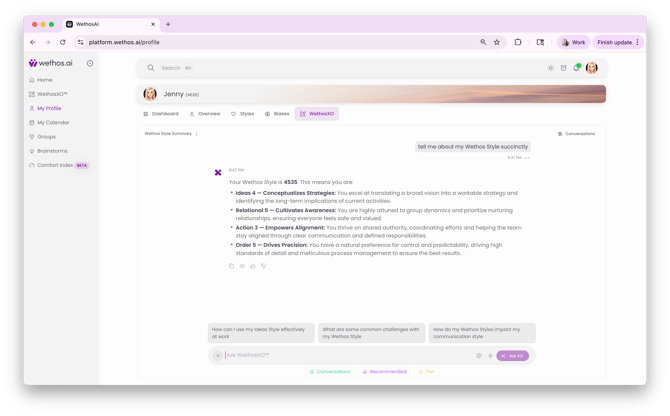
Try a few starter questions:
- "What does my Wethos Style mean?"
- "What are my top strengths?"
- "What should I watch out for based on my behavioral profile?"
- "How do I typically respond under pressure?"
XO's responses are grounded in your actual Wethos Style data, so the answers will be specific to you. This is a private conversation — no one else in your organization can see it.
XO conversations are saved automatically. You can close the chat and come back to it later without losing context. Start a new thread anytime by clicking the + button.
Tip: If your admin has connected Slack, you can also add WethosXO to your Slack sidebar and chat with XO without leaving Slack. See the Adding WethosXO to Slack guide for setup steps.
STEP 4: LOOK UP A COLLEAGUE
One of the most immediately useful things you can do on the platform is learn about someone you work with closely. Use the global search bar at the top of the screen to find a colleague by name and open their profile.
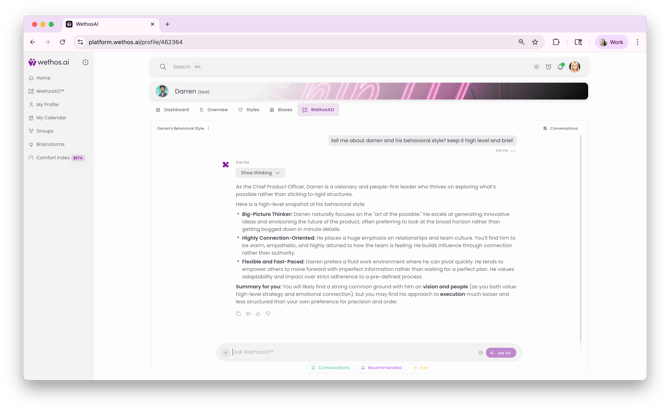
You'll see their Wethos Style Graph, strengths summary, and behavioral overview. From their profile, you can privately ask XO how to best work with them:
- "How should I communicate with this person?"
- "Where might we clash based on our styles?"
- "What's the best way to give them feedback?"
The other person is never notified that you've viewed their profile or asked XO about them.
Tip: Try this with someone you have a meeting with this week. The insights can immediately change how you approach that conversation.
STEP 5: CONNECT YOUR CALENDAR
If your admin has enabled CalendarIQ, navigate to My Calendar in the left-hand navigation. You'll need to connect your Google Calendar or Outlook account — for security and privacy, this is done individually by each user. To see a step by step click here.
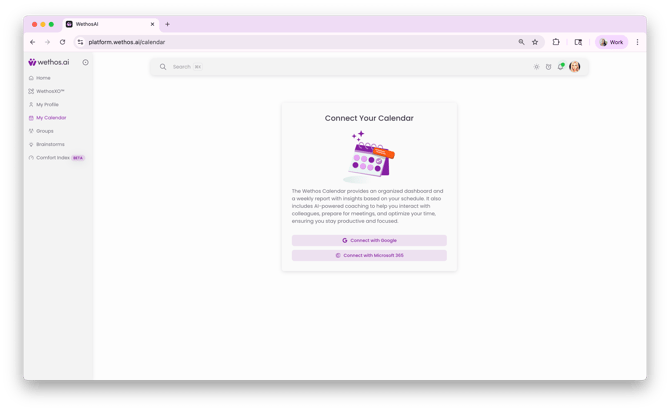
Once connected, explore the three views:
Dashboard — See today's meetings, your meeting distribution for the week, unscheduled blocks, and key time metrics like average meeting length and daily meeting count.
Weekly Report — See your top collaborators and their Wethos Styles, your busiest and lightest days, one-on-one meetings, and your self-blocked time percentage.
Schedule — Browse your full monthly calendar with search and attendee filters.
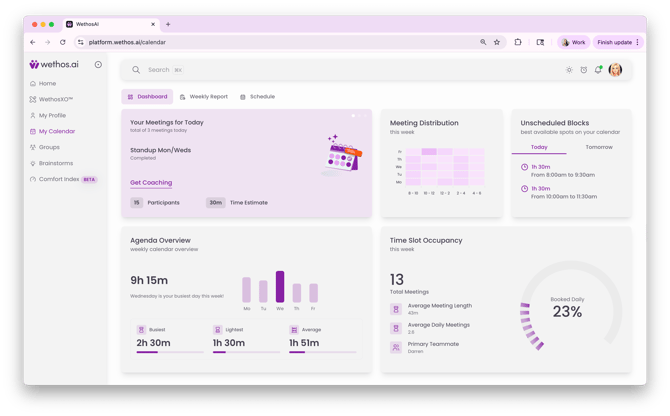
For any upcoming meeting, XO provides pre-meeting behavioral insights based on the attendees' Wethos Styles. You can ask XO for deeper preparation or even request a tailored agenda that accounts for how the specific people in the room process information and make decisions.
Tip: Make it a habit to check CalendarIQ at the start of each day. A two-minute review of your meeting insights can meaningfully improve how you show up.
STEP 6: JOIN YOUR GROUP
If your team has been set up as a Group, click Groups in the left-hand navigation and open your team's workspace. Spend a few minutes exploring:
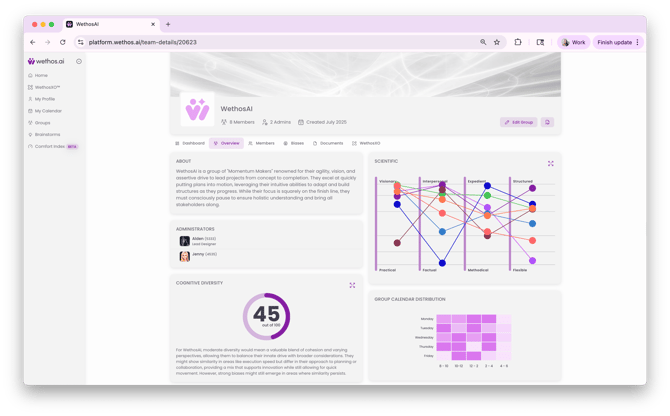
Overview — Read the group's behavioral summary and check the cognitive diversity score. This tells you how diverse your team's thinking styles are.
Members — Scan through your teammates' Wethos Styles and behavioral summaries. Notice who has similar styles to yours and who is very different.
Biases — Review the biases your group is most prone to as a collective. These are patterns that can influence how the team makes decisions together.
Documents — If your admin has enabled Documents, this is where shared files live. You can upload materials, reference them in conversations with XO, and ask XO to summarize uploaded content.
WethosXO — Try the prompt cards or ask XO a question about your group: "What are this group's strengths?" or "Where might this group have blind spots?"
Shared Conversations — This is your team's ongoing communication channel. You can use it in two modes: "Ask WethosXO" for AI-assisted discussion, or "Send Message to Team" for regular chat. Conversations can be Private (just you) or Public (visible to the full group).
Tip: If you're new to the team, ask XO: "I just joined this group. What should I know about how this team works together?" It's a fast way to get oriented.
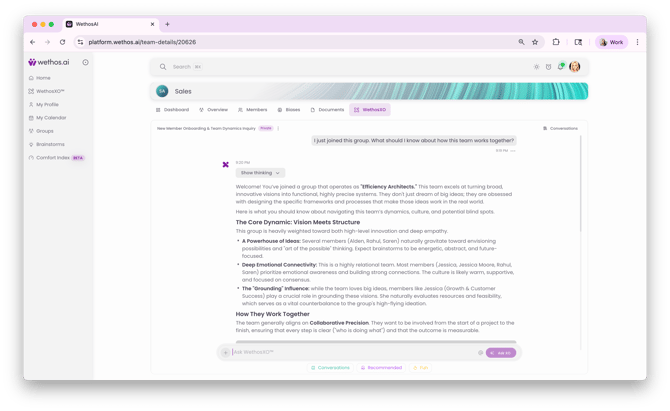
STEP 7: START COLLABORATING
Your group's Shared Conversations are the ongoing communication channel for your team. You can use them in two modes:
Ask WethosXO — XO responds to your message and the response is visible to the entire team. Perfect for getting AI input during discussions.
Send Message to Team — A regular team message without XO responding. Switch back to XO mode anytime by typing "@XO."
Conversations can be Private (just you) or Public (visible to the full group). Use public mode for team-wide discussions and private mode for personal coaching within the team context. Learn more here.
Look up colleagues using the global search bar to view their profiles and privately ask XO how to best work with them.
STEP 8: BUILD YOUR DAILY HABITS
Notifications & Daily Activities
Check notifications (clock icon) for profile enhancement nudges. Answer questions about peers to improve team insights. Complete daily activities to refine your profile over time. You can customize your notifications.
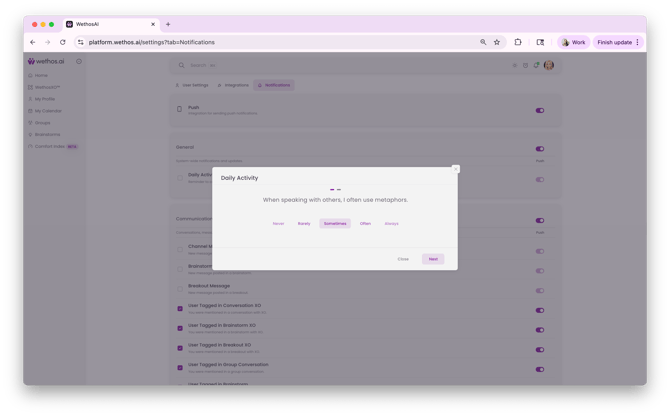
Go to your picture in the upper right corner, click settings, and then "Notifications."
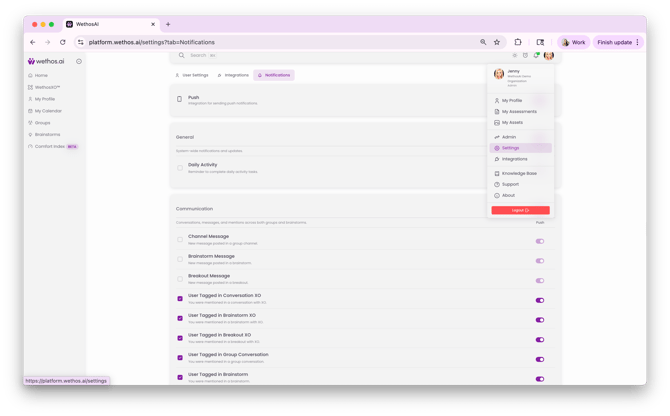
Best Practices
Be specific when asking WethosXO questions — provide context for better responses. Use the feedback buttons (thumbs up/down) on every XO response to help improve quality. Use the copy button to share useful outputs with colleagues.
Getting Help
Ask WethosXO for quick support on any question. Contact support@wethos.ai for technical issues. Click your profile icon → Support for the help form.
WHAT TO EXPLORE NEXT
Once you're comfortable with the basics, there's much more to discover:
Brainstorms — Create or join an outcome-driven workspace for a specific initiative, with decision tracking, engagement scoring, and nested Breakouts for sub-topics. Learn more here.
Simulated Brainstorms — Watch AI personas debate a topic using your team's behavioral styles before your human team takes over. Learn more here.
Recommend a Group — Use AI to assemble a balanced team for a new project based on behavioral compatibility and skills. Learn more here.
Traits & Biases Analysis — As meeting transcripts are analyzed, your profile deepens over time. Ask XO for your latest enriched traits and biases data. Learn more here.
QUICK REFERENCE
Key Navigation
- Home — Central dashboard with prompt cards
- WethosXO™ — AI assistant (available everywhere)
- My Profile — Your style, settings, and customization
- My Calendar — Meeting insights and time analytics
- Groups — Core team and project collaboration hubs
- Brainstorms — Outcome-driven initiative workspaces
Important Icons
- Bell — Notifications
- Clock - Daily activity
- Sun/Moon — Light/dark mode toggle
- Profile Picture — Settings, admin, support access
- Search Bar — Find people and teams
- PDF Icon — Download profile summaries
YOUR FIRST WEEK'S GOALS
Week 1 Goals
- Complete your chosen assessment
- Customize your profile picture and banner
- Connect your calendar
- Explore your group
- Ask WethosXO 5 questions about your style
Week 2 Goals
- Look up 3 colleagues' profiles and ask XO about working with them
- Use meeting insights to prepare for upcoming meetings
- Try a Shared Conversation with XO tagged for your team
- Complete daily activities when they appear
Ongoing
- Consider taking the comprehensive assessment if you started with a faster option
- Explore the Biases section on your group page
- Use the document upload feature for team resources
- Provide feedback to help improve WethosXO
- Ask XO for your latest traits and biases data, as transcripts are analyzed
COMPREHENSIVE CHECKLIST
Getting Started
- Create your account from the invitation email
- Complete your assessment (LinkedIn, 8-question, or 84-question)
- Watch the 2-minute onboarding video
- Review your Wethos Style and what each digit means
Your Profile
- Read your AI-generated About summary
- Explore your Wethos Style Graph (Kinetic and Scientific views)
- Review your Biases tab
- View your auto-generated Skills
- Upload or generate a profile picture and banner image
WethosXO
- Open Global XO Chat and ask your first question
- Ask XO what your Wethos Style means
- Ask XO about your strengths and blind spots
- Add WethosXO to Slack (if your admin has connected the integration)
Calendar
- Navigate to My Calendar and connect with Google or Microsoft 365
- Review your Dashboard and meeting distribution
- Check pre-meeting behavioral insights before your next meeting
Your Group
- Open your Group and read the Overview
- Scan the Members tab to see your teammates' styles
- Review the group's Biases tab
- Try a prompt card in the group's WethosXO tab
Collaborating
- Look up a colleague's profile using the global search bar
- Ask XO privately how to best work with them
- Post in a Shared Conversation
- Tag @XO in a public Shared Conversation for a team insight
Building Your Habits
- Check CalendarIQ at the start of each day
- Complete daily activity nudges when they appear (bell icon)
- Rate XO responses with thumbs up/down to improve quality
- Ask XO 5 questions in your first week
- Look up 3 colleagues' profiles in your second week
IMPORTANT REMINDER
WethosAI is designed to enhance human collaboration, not replace it. Use insights to inform your interactions while maintaining authenticity and allowing room for growth. There is no single "best" style — only the right style for the specific moment and context.
Welcome to better workplace relationships!