![wethos_icon_light-mode-nmcocwgai7dk3bq6c54sa7ubcw.svg]](https://24346244.fs1.hubspotusercontent-na1.net/hubfs/24346244/wethos_icon_light-mode-nmcocwgai7dk3bq6c54sa7ubcw.svg)
WELCOME
As an organization admin, you're responsible for setting up the WethosAI environment for your team. This guide walks you through everything you need to do to get your organization up and running — from configuring the platform and inviting members to creating groups and connecting integrations. By the end of your first week, your team will have a fully functional WethosAI workspace ready to go.
BEFORE YOU BEGIN
Make sure you've completed your own Wethos Style assessment first. As an admin, you're also a user — and having your own profile set up helps you understand what your team members will experience. If you haven't done this yet, see the Getting Started with WethosAI user guide.
STEP 1: ACCESS ADMIN MODE
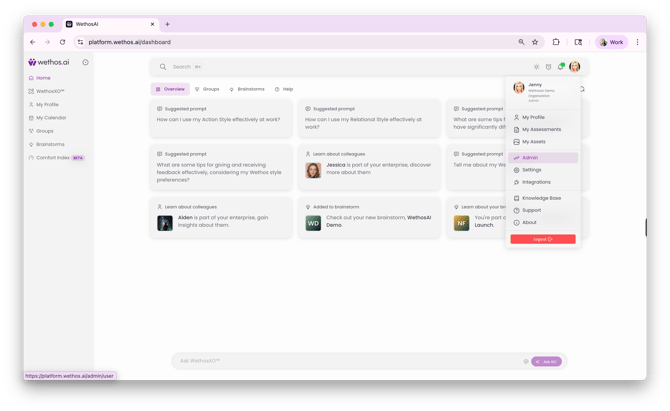
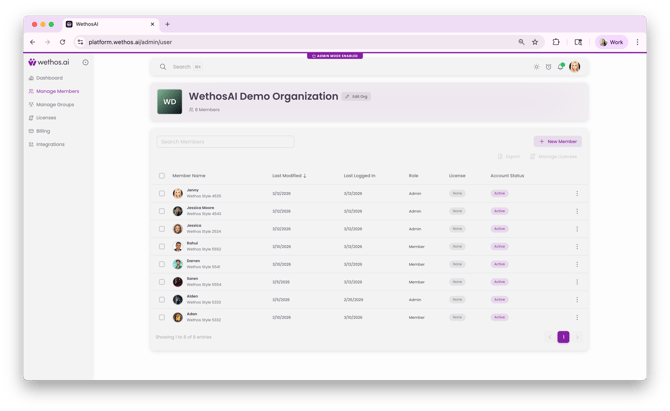
Click your profile icon in the top-right corner of the platform. In the dropdown menu, click Admin. The platform will switch to Admin Mode — you'll see a purple "Admin Mode Enabled" banner at the top of the screen, and the left-hand navigation will change to show: Dashboard, Manage Members, Manage Groups, Licenses, Billing, and Integrations.
You can switch between Admin Mode and your regular user experience at any time by clicking your profile icon and selecting User to return to the standard view.
STEP 2: CONFIGURE YOUR ORGANIZATION
Edit Organization Settings
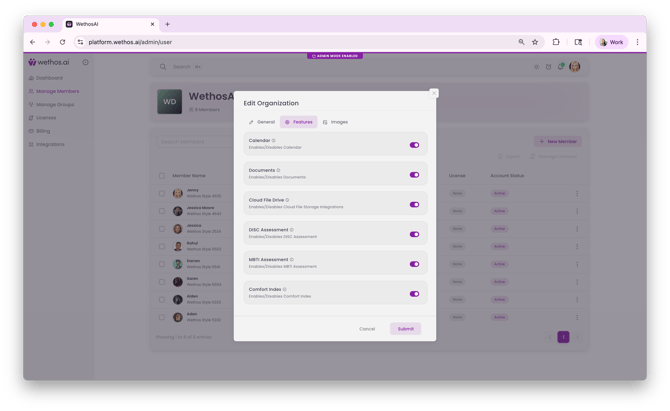
From the Admin panel, click the Edit Org button (pencil icon) next to your organization name at the top of the Manage Members page. This opens the Edit Organization modal with three tabs:
General — Set your organization name and the overarching privacy settings.
Features — Enable or disable platform features for your entire organization. Each toggle controls whether a feature is available to your team members. The available toggles are:
- Calendar — Enables CalendarIQ. Each user will still need to connect their own calendar individually.
- Documents — Enables document upload and management within Groups and Brainstorms.
- Cloud File Drive — Enables Google Drive Sync Points for automatic document syncing.
- DISC Assessment — Allows users to self-report their DISC results on their profile.
- MBTI Assessment — Allows users to self-report their MBTI results on their profile.
- Comfort Index — Enables team comfort and alignment monitoring.
Toggle on the features you want available and click Submit to save.
Images — Upload your organization's logo and branding images to customize the platform experience.
CONNECT INTEGRATIONS
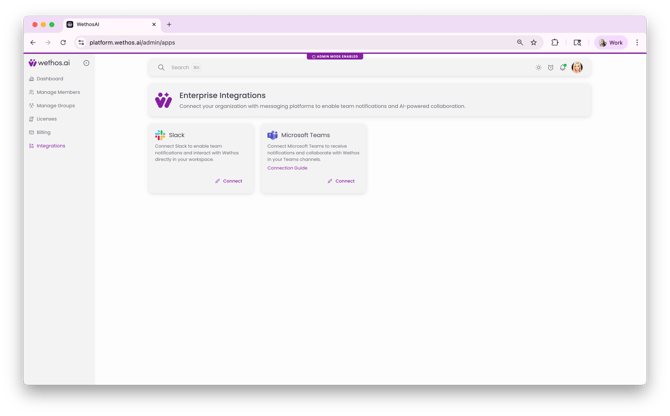
While still in Admin Mode, set up the integrations your organization will use.
Slack — Connecting Slack lets your team interact with WethosXO directly in Slack. From the Admin panel, click Connected Apps (under Integrations), find the Slack integration, and click Connect Now. Enter your Slack workspace URL, review permissions, and click Allow. Once connected, share the user-facing Slack setup guide with your team so they can add WethosXO to their individual Slack sidebars.
Google Calendar & Microsoft 365 — Enabling CalendarIQ in the Features tab makes the calendar feature available, but each user must connect their own calendar individually. When a user navigates to My Calendar for the first time, they'll see a "Connect Your Calendar" screen with two options: Connect with Google or Connect with Microsoft 365. This is by design — for security and privacy, calendar connections are managed at the individual level. Let your team know which option to choose based on your organization's email and calendar provider.
Microsoft Teams — Microsoft Teams can be connected as an integration for your organization. From the Admin panel, navigate to Integrations to view and manage the Microsoft Teams connection.
Google Drive — Enabling Cloud File Drive in the Features tab allows team members and admins to set up Google Drive Sync Points within Groups and Brainstorms. Sync Points automatically pull files from connected Google Drive folders into the platform for centralized access and XO-powered analysis.
STEP 3: INVITE YOUR TEAM MEMBERS
Adding Members
From the Admin panel, click Manage Members in the left-hand navigation. You'll see your member table showing everyone currently in your organization along with their Wethos Style, last modified date, last logged in date, role, license status, and account status.
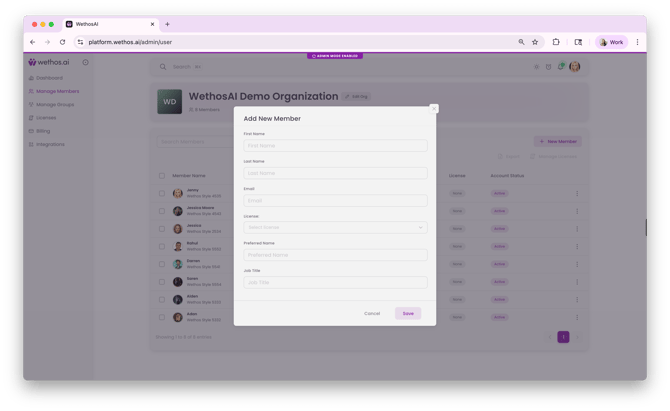
To invite new members, click the + New Member button in the top-right area of the member table. Enter the new member's information and send the invitation. They'll receive an email with a link to join the platform.
Understanding Account Statuses
As invitations go out, you'll see members move through account statuses:
- Pending — An invitation has been sent but the user hasn't logged in yet.
- Active — The user has successfully logged in and set up their account.
- Expired — The user didn't log in within 14 days of the invitation. You'll need to resend a reactivation link.
You may also see additional tags under a user's name: Not Started (logged in but hasn't begun the assessment) or In Progress (started the assessment but hasn't completed it).
Managing Roles
Each member has a Role designation — either Admin or Member. Admins can access the Admin panel and manage organization settings, members, groups, licenses, and integrations. Members have access to the standard platform experience. You can change a member's role by clicking the three-dot menu (⋮) on the right side of their row.
Exporting Member Data
Use the Export button above the member table to download your organization's member data. The Manage Licenses button lets you view and adjust license allocations.
STEP 4: CREATE YOUR GROUPS
Navigate to Manage Groups
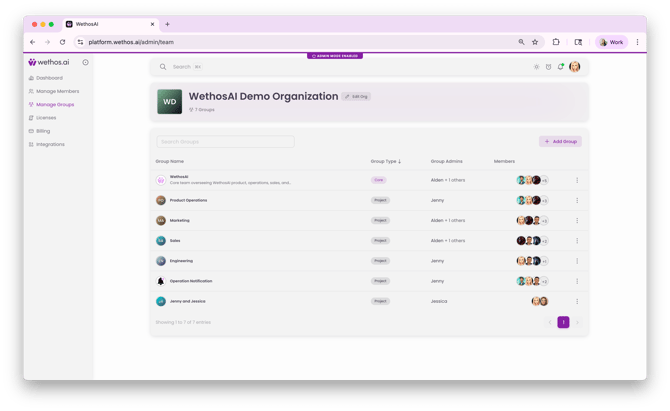
From the Admin panel, click Manage Groups in the left-hand navigation. This is where you create and manage the team structures your organization will use.
Core Groups
Create Core Groups to mirror your organization's departmental structure — for example, Marketing, Engineering, Customer Success, or Leadership. Core Groups are persistent and represent ongoing organizational units. For each group, add the relevant team members and assign group administrators.
Project Groups
Create Project Groups for cross-functional initiatives, side projects, or specialized tasks. These can be assembled manually or by using the Recommend a Group feature, which uses AI to suggest balanced team configurations based on members' Wethos Styles and skills.
What Groups Get Your Team
Once groups are created, members gain access to the group's Overview (behavioral snapshot and cognitive diversity score), Members tab, Biases tab, Documents, WethosXO in the group context, and Shared Conversations for ongoing team communication.
STEP 5: LICENSES & BILLING
Licenses
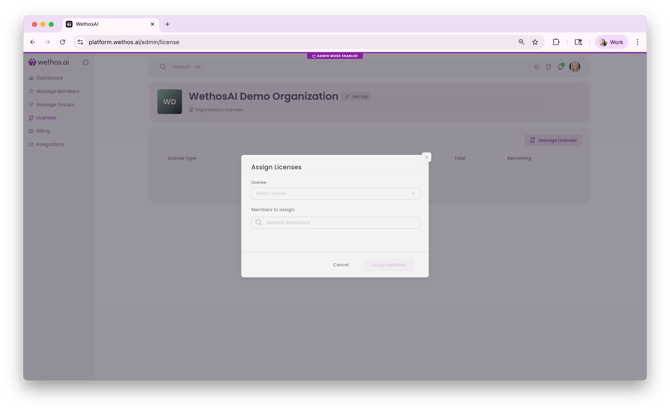
Click Licenses in the Admin panel navigation to view your organization's license allocation. This is where you manage how many seats are available and how they're distributed. Ensure you have enough licenses for all the members you plan to invite.
Billing
Click Billing to access your subscription details and billing information. Review your plan to confirm it supports the number of members and features your organization needs.
YOUR FIRST WEEK - ADMIN FLOW
Day 1 — Configure and Invite
Complete your own assessment if you haven't already. Access Admin Mode, configure your organization settings (General, Features, Images), connect your integrations (Slack, Microsoft Teams), and send invitations to your team. Enable the features your organization needs from the start.
Day 2 — Create Core Groups
Set up your Core Groups to mirror your department structure. Add members to each group and assign group administrators. As members accept their invitations and complete their assessments, they'll automatically have access to the groups you've placed them in.
Day 3 — Monitor Onboarding Progress
Check the Manage Members table to see who has accepted invitations and completed their assessments. Follow up with anyone showing Pending or Expired status. Look for Not Started or In Progress tags to identify members who need encouragement to complete the assessment. Use the Usage Dashboard to start tracking early engagement. Share setup instructions with your team for connecting their individual calendars and adding WethosXO to Slack.
Day 4 — Set Up Project Groups and Explore
Create any initial Project Groups for cross-functional work. Explore the Recommend a Group feature to see how AI-powered team formation works. Review your groups' Overview tabs to see cognitive diversity scores and behavioral snapshots as member profiles populate. Post a welcome message in each group's Shared Conversation to kick off collaboration.
Day 5 — Explore Brainstorms and Simulated Brainstorms
Create your first Brainstorm around an upcoming initiative, decision, or meeting. Add relevant members, set a clear objective, and upload any supporting documents to the Artifacts panel. Explore the Decisions Hub and Engagement Score features. Then try a Simulated Brainstorm — toggle on the simulation option, add team members, inject context through Artifacts, and watch AI personas debate the topic using your team's actual Wethos Styles. Review the justified decisions the simulation produces and see how the workspace transitions into a regular Brainstorm for your human team to take over.
ONGOING ADMIN RESPONSIBILITIES
After the initial setup, your ongoing admin tasks include:
- Monitoring the Usage Dashboard for engagement trends (Unique Users, Average Time Per User Per Day, User Engagement, Daily Users, and Key Feature Usage across Brainstorms, Groups, Know Others, and WethosXO)
- Inviting new members as your organization grows and managing their onboarding status
- Creating new Project Groups as initiatives launch
- Managing licenses as your team scales
- Enabling new features as they become relevant (e.g., turning on Comfort Index when your team is ready)
- Reviewing billing and subscription details periodically
- Coordinating with the WethosAI support team for any technical or account issues
Need Help?
For platform issues, submit a support ticket through the Support option in your profile dropdown menu. For questions about specific features, visit the Knowledge Base (also accessible from your profile dropdown). Your WethosAI account team is available for additional guidance on best practices for rolling out the platform to your organization.