![wethos_icon_light-mode-nmcocwgai7dk3bq6c54sa7ubcw.svg]](https://24346244.fs1.hubspotusercontent-na1.net/hubfs/24346244/wethos_icon_light-mode-nmcocwgai7dk3bq6c54sa7ubcw.svg)
OVERVIEW
Core Groups represent your organization's permanent team structures — departments, functions, or any team that operates on an ongoing basis. Creating Core Groups is an admin-only ability. This guide walks you through the step-by-step process.
Note: You must have Admin permissions to create Core Groups. You can verify your role by clicking your profile icon — if you see "Admin" listed, you're good to go.
STEP-BY-STEP
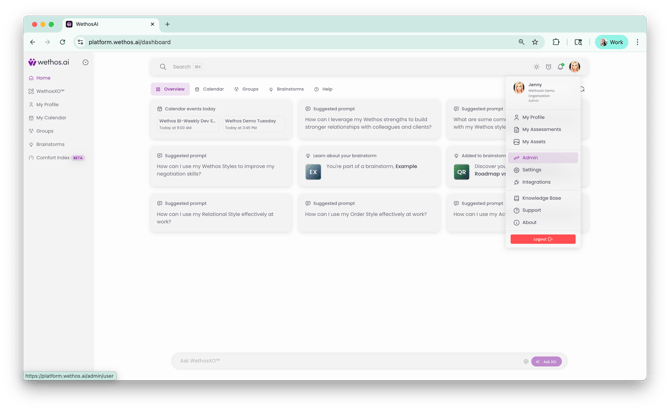
Step 1: Access Admin Mode
Click your profile icon in the top-right corner of the platform and select Admin to enter the Admin panel.
Step 2: Navigate to Manage Groups
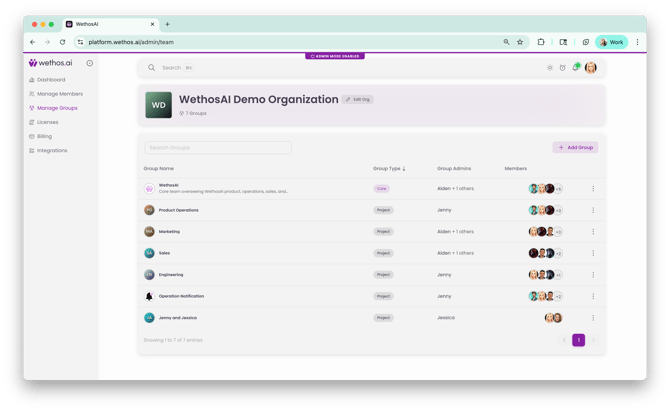
In the Admin panel's left-hand navigation, click Manage Groups.
Step 3: Add a New Group
Click the Add Group button.
Step 4: Enter Group Details
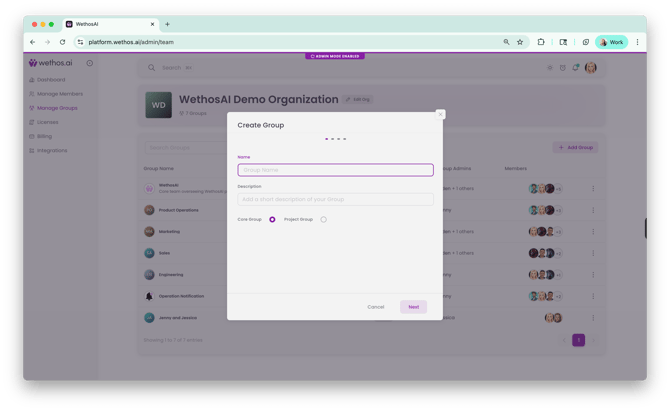
Enter a Group Name and Description. The description helps members understand the group's purpose and gives WethosXO context for generating behavioral insights about the team.
Step 5: Select Core Group
Choose Core Group as the group type, then click Next.
Step 6: Add Members
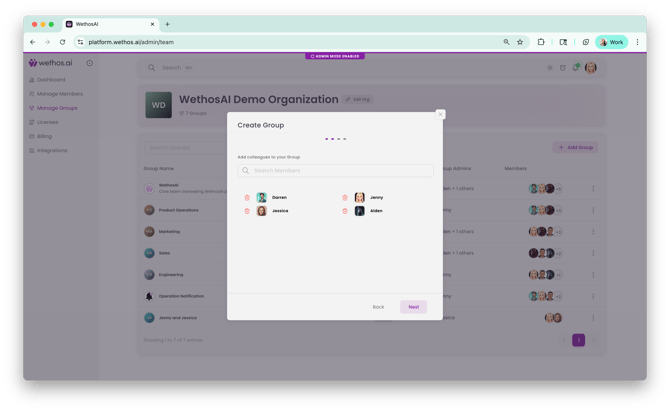
Search for and add colleagues to your group. You can add as many members as needed. Click Next once your members have been added.
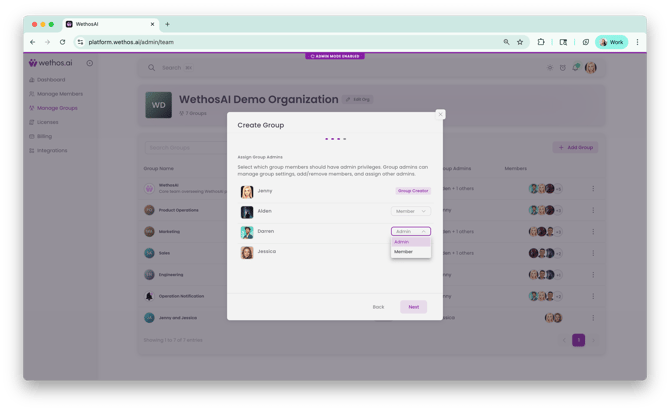
Step 7: Assign Group Admins
The person who created the group is automatically listed as the Group Creator. For other members, use the dropdown to set their role as either Admin or Member. Group Admins can manage group settings, add or remove members, and assign other admins. Click Next when you're done.
Step 8: Customize Appearance (Optional)
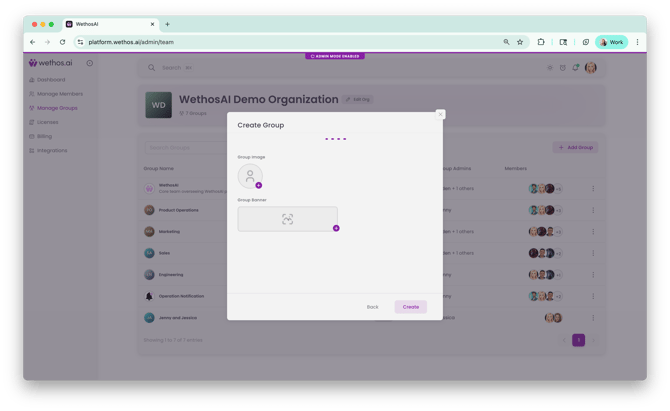
Upload a Group Image and Group Banner to give your group a visual identity. This step is optional — you can skip it or come back to it later.
Step 9: Create the Group
Click Create. Your Core Group is now live. Members will be able to access the group from their left-hand navigation under Groups, with full access to the Overview, Members, Biases, Documents, WethosXO, and Shared Conversations tabs.
WHAT HAPPENS NEXT
Once the group is created, WethosAI automatically generates a behavioral overview of the group based on members' Wethos Styles, including a cognitive diversity score and narrative summary. Members can begin using Shared Conversations immediately, and the group's WethosXO tab will provide coaching and insights tailored to the team's specific composition.
TIPS
Write a clear, specific group description. This helps XO provide more relevant insights when members ask questions about the group.
Assign at least one additional Group Admin beyond the creator so that group management doesn't depend on a single person.
Add members before they've completed their assessments if needed — their profiles will populate in the group automatically once they finish onboarding.