![wethos_icon_light-mode-nmcocwgai7dk3bq6c54sa7ubcw.svg]](https://24346244.fs1.hubspotusercontent-na1.net/hubfs/24346244/wethos_icon_light-mode-nmcocwgai7dk3bq6c54sa7ubcw.svg)
Creating a Project Group
Any user can create a Project Group from the main Groups tab.
1. Navigate to the Groups section and select the Project Groups tab.
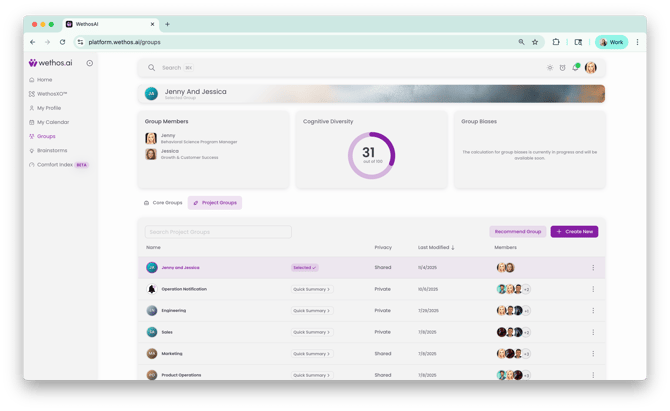
2. Click Create New.
3. Enter a Group Name and Description.
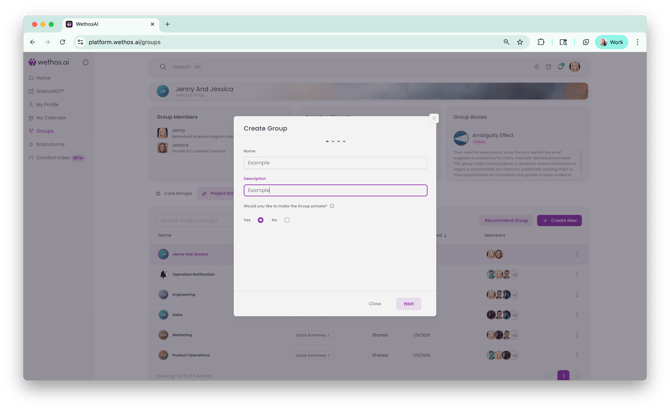
4. Choose whether to make the group private. A private group will only be visible to the Group Admin, while a non-private group will be visible to all members assigned to that project group.
5. Click Next.
6. Search for and add colleagues to your group. Click Next once your members have been added.
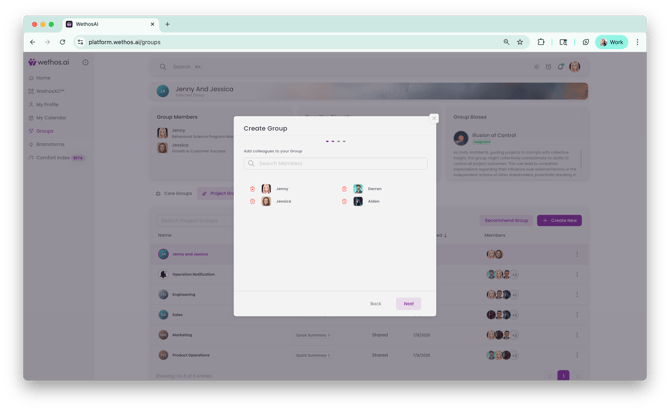
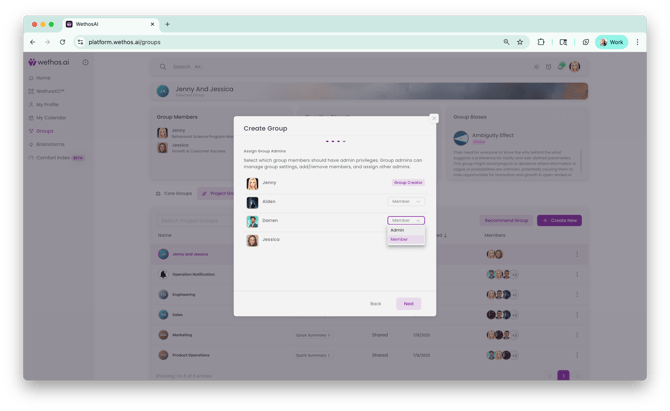
7. Assign Group Admins. The person who created the group will automatically be listed as the Group Creator. For other members, use the dropdown to set their role as either Admin or Member. Click Next when you're done.
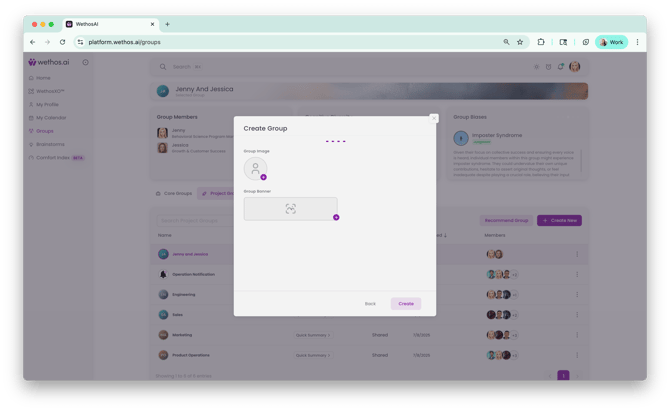
8. Optionally upload a Group Image and Group Banner.