![wethos_icon_light-mode-nmcocwgai7dk3bq6c54sa7ubcw.svg]](https://24346244.fs1.hubspotusercontent-na1.net/hubfs/24346244/wethos_icon_light-mode-nmcocwgai7dk3bq6c54sa7ubcw.svg)
OVERVIEW
As an organization admin, you can connect your Slack workspace to WethosAI so that all team members can interact with WethosXO™ directly through Slack. This is a one-time setup that enables the integration for your entire organization. Once connected, individual users can add the WethosXO app to their own Slack sidebar.
Note: This setup requires Admin permissions in WethosAI and the ability to approve app installations in your Slack workspace.
STEP-BY-STEP SETUP
Step 1: Access Admin Mode
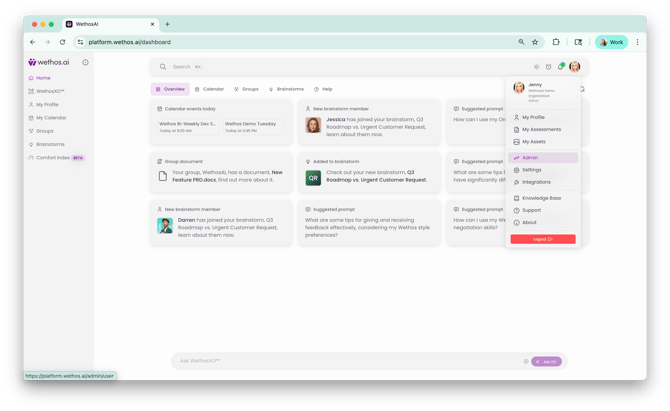
Click your profile picture in the top-right corner of the WethosAI platform. In the dropdown menu, click Admin. If you're already in Admin Mode, you'll see the purple "Admin Mode Enabled" banner at the top of the screen.
Step 2: Navigate to the Slack Integration
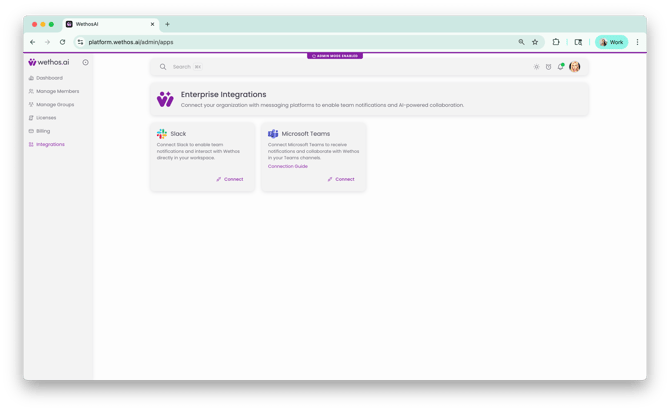
From the Admin panel's left-hand navigation, click Integrations. You'll see the option to "Connect Wethos to Slack." Click the Connect button.
Step 3: Choose Your Slack Workspace
A Slack sign-in page will appear asking you to enter your workspace's Slack URL. Input your Slack workspace address and click Continue. 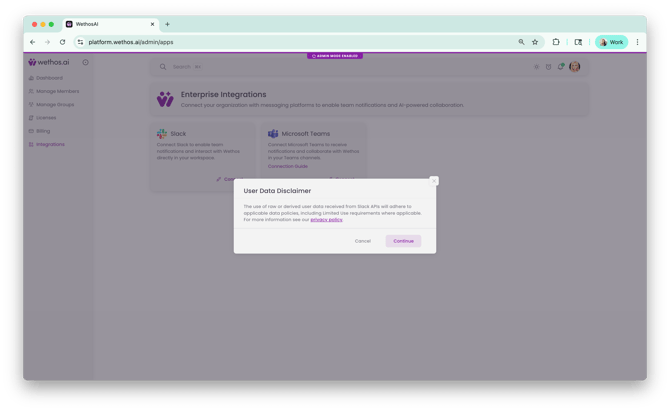
Step 4: Choose Your Slack Workspace
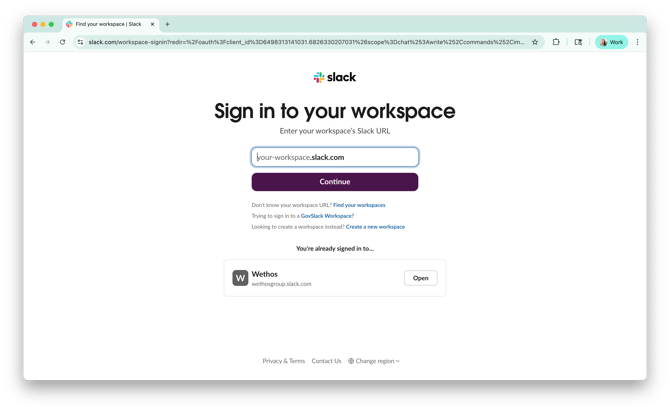
Type in your Slack Workspace and click Continue. If you don't know your workspace URL, click Find your workspaces to locate it.
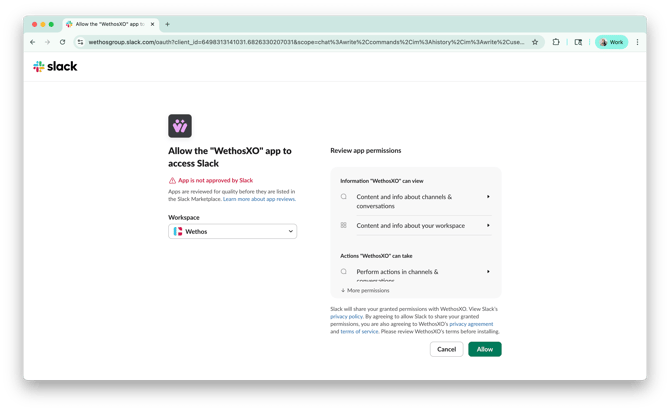
Step 5: Review & Allow Permissions
Slack will display a permissions review screen showing what the WethosXO app is requesting access to. This includes the ability to connect and interact within your Slack workspace. Review the requested permissions, then click Allow to authorize the integration.
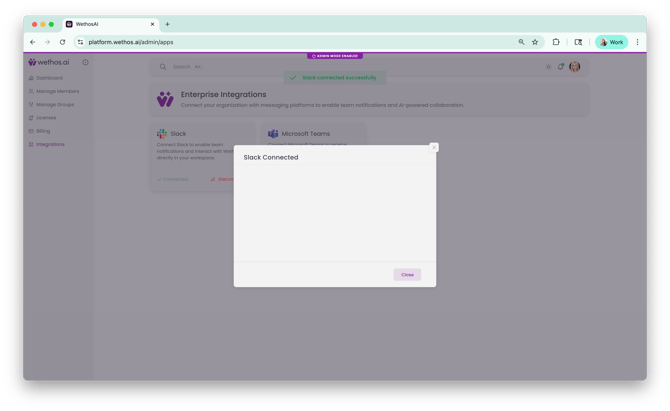
Step 6: Confirmation
You should now see a confirmation screen indicating that Slack is connected successfully. The integration is now active for your organization.
WHAT HAPPENS NEXT
Once the admin connection is complete, the WethosXO app becomes available in your Slack workspace's app directory. Individual team members can now find and add WethosXO to their own Slack sidebar to start chatting with XO directly. Share the user-facing setup guide with your team so they know how to add the app on their end.
TIPS
Make sure you have permission to install apps in your Slack workspace before starting. If your workspace restricts app installations, you may need to coordinate with your Slack workspace admin separately.
After connecting, let your team know the integration is live and point them to the user setup guide so they can add WethosXO to their Slack.
The Slack integration gives users the same WethosXO experience they get on the platform — behavioral coaching, @ mentions for colleagues, and personalized guidance — all without leaving Slack.