![wethos_icon_light-mode-nmcocwgai7dk3bq6c54sa7ubcw.svg]](https://24346244.fs1.hubspotusercontent-na1.net/hubfs/24346244/wethos_icon_light-mode-nmcocwgai7dk3bq6c54sa7ubcw.svg)
Breakouts — Focused Sub-Workspaces
OVERVIEW
Breakouts extend the flexibility of Brainstorms by allowing smaller groups to focus deeply on specific topics or challenges without disrupting the main discussion. They are nested workspaces — created from within a Brainstorm — that support parallel progress and faster decision-making while keeping teams aligned to shared objectives.
When a tangent emerges in a Brainstorm, a subtopic needs deeper exploration, or a specific issue requires only a subset of the team, a Breakout provides a dedicated space for that focused work. Once the Breakout's goal is met, results can be published back into the main Brainstorm thread for broader visibility.
HOW BREAKOUTS RELATE TO BRAINSTORMS
Every Breakout exists within a parent Brainstorm. It inherits the context and purpose of that Brainstorm but operates independently with its own members, conversation, and artifacts. Multiple Breakouts can run simultaneously within the same Brainstorm, enabling parallel workstreams on different facets of the same initiative.
A Breadcrumb Trail appears at the top of the screen when you're inside a Breakout, showing the navigation path between the parent Brainstorm and the current Breakout. This makes it easy to move back and forth between the broader initiative and the focused discussion.
WHAT YOU'LL SEE
Each Breakout mirrors the structure of a Brainstorm but operates as a smaller, purpose-built workspace:
Breakout Overview
Shows the title, description, and goal of the Breakout, clearly linking it back to the parent Brainstorm. This keeps the focused discussion grounded in the broader objective.
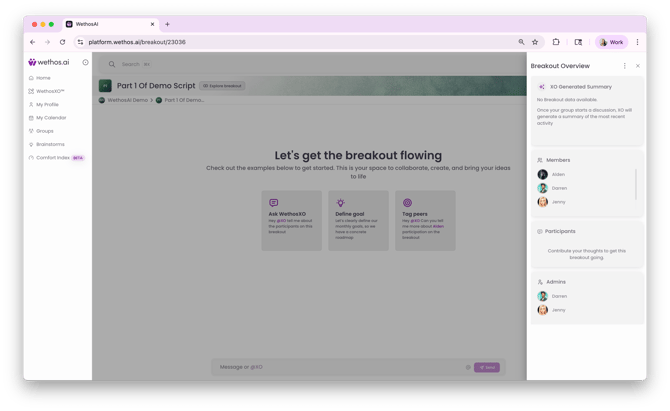
Members Panel
Lists only the subset of participants involved in the Breakout. Unlike the parent Brainstorm, which may include a larger cross-functional team, the Breakout includes only the people needed for the specific topic. This keeps discussions tight and communication efficient.
Conversation Area
A dedicated space for concentrated conversation and tagged input. Team members can post messages, share ideas, tag colleagues, and tag @XO for behavioral coaching and analysis — just like in the parent Brainstorm, but focused on the Breakout's specific topic.
Artifacts Panel
Holds files, notes, and drafts relevant to the Breakout's topic. This is separate from the parent Brainstorm's Artifacts, ensuring that materials stay organized and contextually relevant.
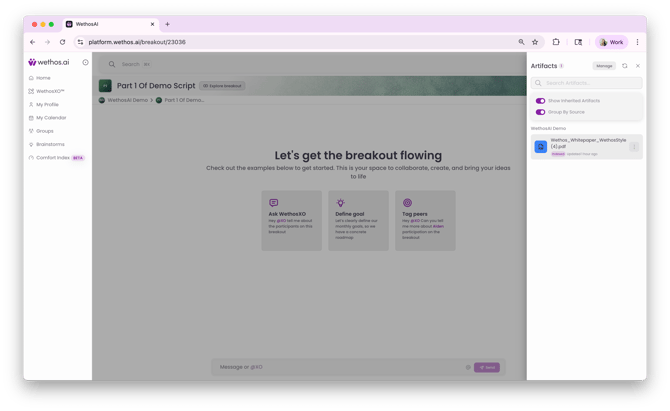
Breadcrumb Trail
Appears at the top of the screen showing the navigation path — for example, "Product Feature Requests > Dynamic Level of Detail for XO Responses." This visual trail makes it clear where you are in the workspace hierarchy and provides one-click navigation back to the parent.
WethosXO
XO remains active in each Breakout when tagged. It provides the same capabilities as in the parent Brainstorm — synthesis, bias detection, communication coaching, and quick summaries — but scoped to the Breakout's specific context and participants.
THE BREAKOUTS DASHBOARD
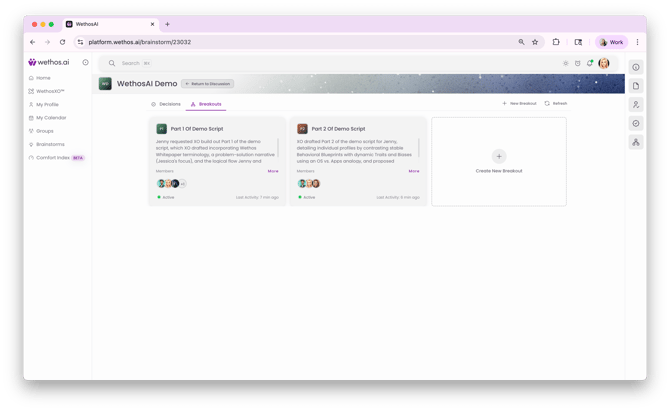
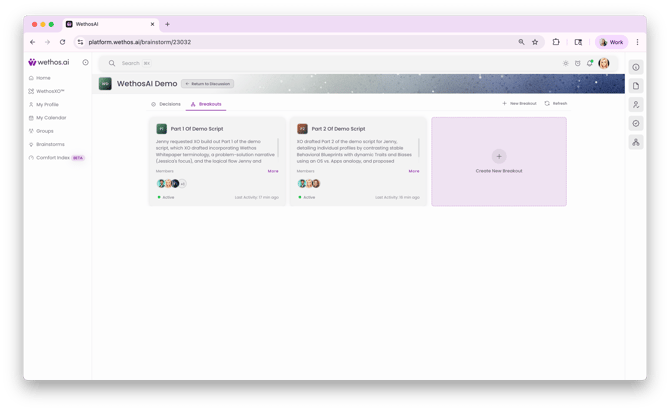
When you navigate to the Breakouts view from within a Brainstorm, you'll see a "Breakouts at a glance" dashboard. This provides a summary of all active sub-discussions with cards showing each Breakout's title, a short description of recent activity, member avatars, an engagement indicator, and last activity timestamp. A "New Breakout" button allows you to create additional focused workspaces as needed.
Each Breakout card includes a "More" link to enter the full workspace, and a "Return to Discussion" button to navigate back to the parent Brainstorm's main thread.
HOW TO USE BREAKOUTS
Creating a Breakout
Here is a step-by-step guide to creating a Breakout from within a Brainstorm.
1. Navigate to your Brainstorm and select the Breakouts tab.
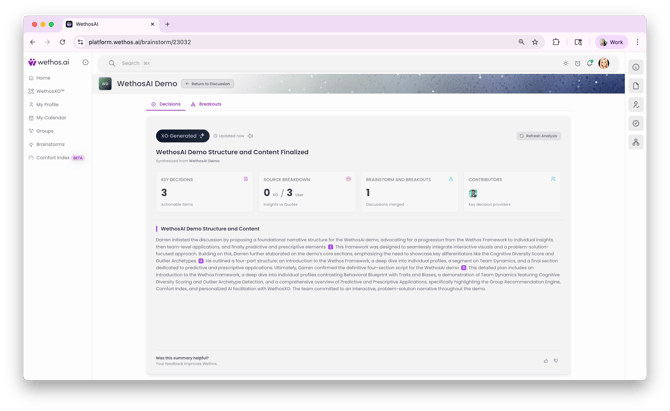
2. Click New Breakout or the Create New Breakout button.
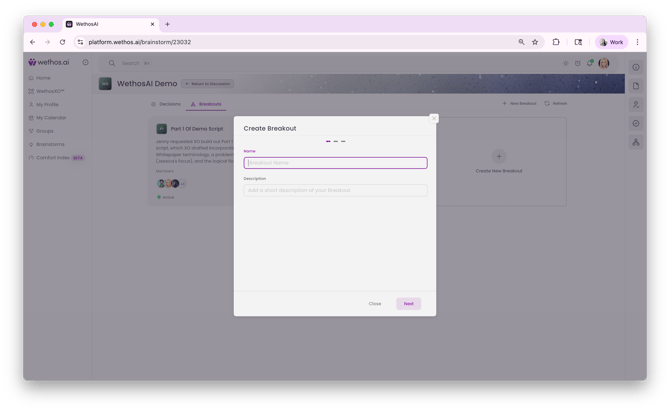
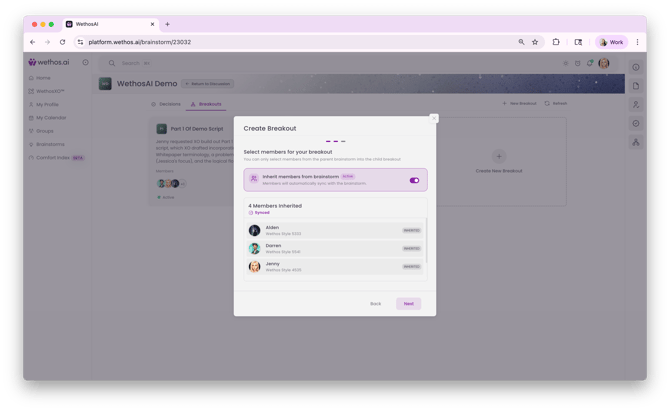
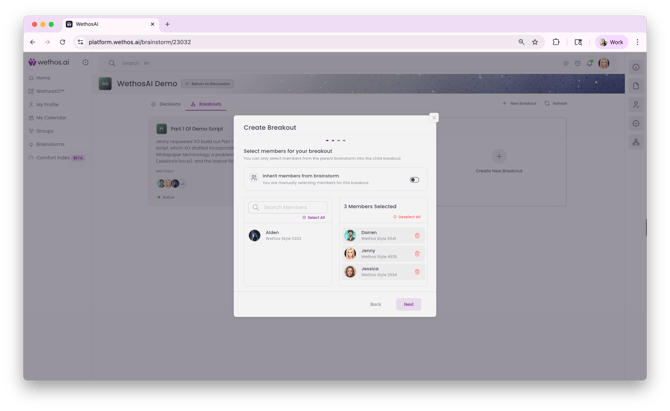
3. Select members for your Breakout. You can only select members from the parent Brainstorm. You have two options: toggle on "Inherit members from brainstorm" to automatically sync all members from the parent Brainstorm, or toggle it off to manually select specific members. When selecting manually, use the search bar to find members, click to add them, or use Select All and Deselect All for quick selection. Click Next when you're done.
4. Assign Breakout Admins. The person who created the Breakout will automatically be listed as the Breakout Creator. For other members, use the dropdown to set their role as either Admin or Member. Breakout Admins can manage Breakout settings, add/remove members, and assign other admins. Click Next when you're done.
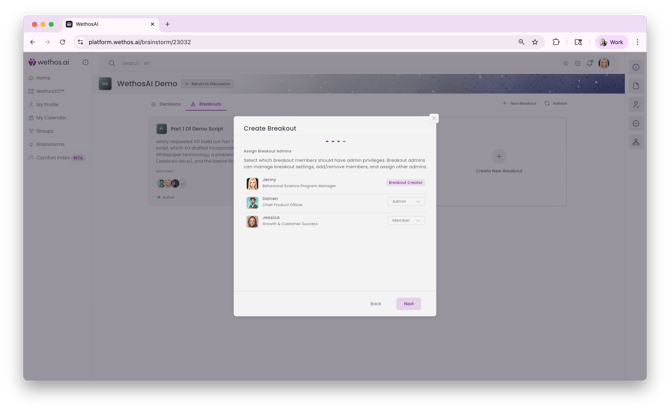
5. Optionally upload a Breakout Image and Breakout Banner to customize your Breakout's appearance.
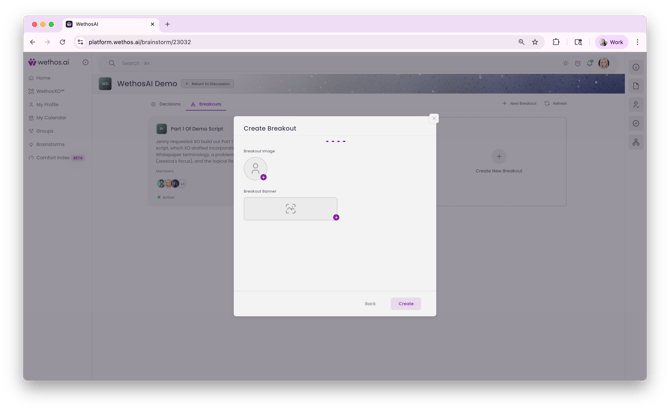
6. Click Create and your Breakout will be created.
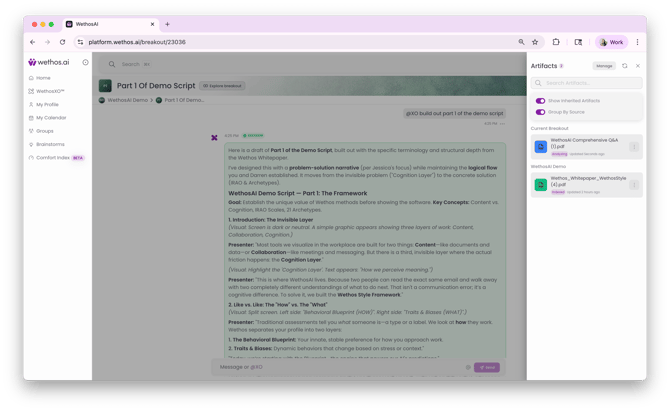
7. You can reference Artifacts from the main Brainstorm and upload documents into the Breakout directly.
WORKING IN A BREAKOUT
Use the conversation area to discuss the specific topic. Upload relevant documents to the Artifacts panel. Tag XO for help summarizing progress, highlighting alignment gaps, or recommending next actions. Mark key decisions using the Decisions feature so outcomes are captured.
Publishing Results
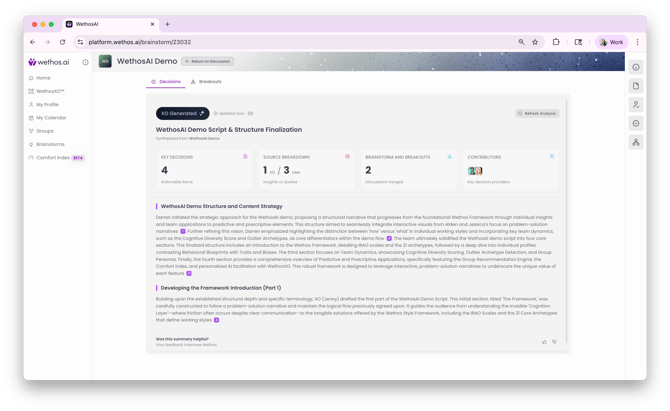
Once the Breakout's goal is met, results can be published back into the main Brainstorm thread. This ensures the broader team has visibility into what was discussed and decided in the focused workspace, and it allows the Decisions Hub in the parent Brainstorm to aggregate outcomes from across all Breakouts.
Running Parallel Workstreams
Multiple Breakouts can run simultaneously within the same Brainstorm. This is useful when an initiative has several distinct facets that benefit from parallel exploration — for example, one Breakout might focus on technical feasibility while another explores market positioning, both feeding back into the same strategic Brainstorm.
COMMON USE CASES
- A product team Brainstorm spawns a Breakout for the design team to explore a specific UX challenge
- A strategy session creates parallel Breakouts for pricing, positioning, and competitive analysis
- A side issue emerges during a discussion that needs resolution but would derail the main thread
- A small working group needs to draft a document or proposal before presenting it to the full team
- A sensitive topic requires a private discussion among a subset of the Brainstorm's participants
TIPS
Keep Breakouts focused. Each one should have a clear, specific goal. If the scope starts expanding, consider creating a new Breakout rather than letting the current one grow beyond its original purpose.
Select members intentionally. Only include the people who need to be in the discussion. Adding too many participants defeats the purpose of having a focused sub-workspace.
Publish results back to the parent. The value of a Breakout is diminished if its outcomes stay siloed. Make sure key decisions and insights are surfaced to the broader team through the parent Brainstorm.
Use XO to bridge the gap. If you need to catch up the broader team on what happened in a Breakout, tag XO in the parent Brainstorm and ask it to summarize the Breakout's outcomes.