![wethos_icon_light-mode-nmcocwgai7dk3bq6c54sa7ubcw.svg]](https://24346244.fs1.hubspotusercontent-na1.net/hubfs/24346244/wethos_icon_light-mode-nmcocwgai7dk3bq6c54sa7ubcw.svg)
OVERVIEW
As an organization admin, you can invite new team members to join your WethosAI platform. This guide walks through the process of adding a user, what happens after the invitation is sent, and what the new user needs to do on their end.
Note: This functionality is only available to users with an Admin role.
STEP-BY-STEP
Step 1: Access Admin Mode
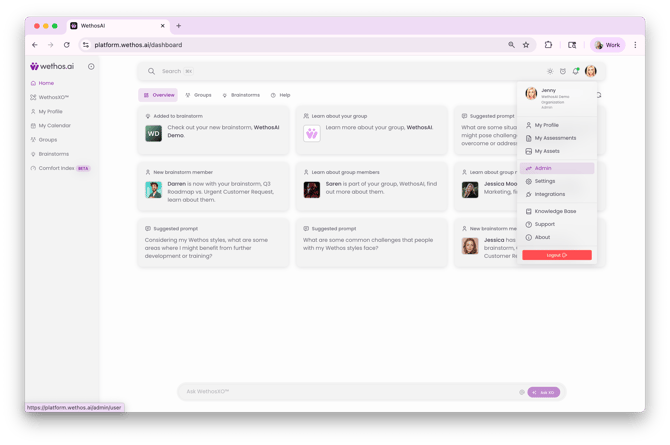
Click your profile icon in the top-right corner of the platform and select Admin to enter the Admin panel. If you're already in Admin Mode, you'll see the purple "Admin Mode Enabled" banner at the top of the screen.
Step 2: Navigate to Manage Members
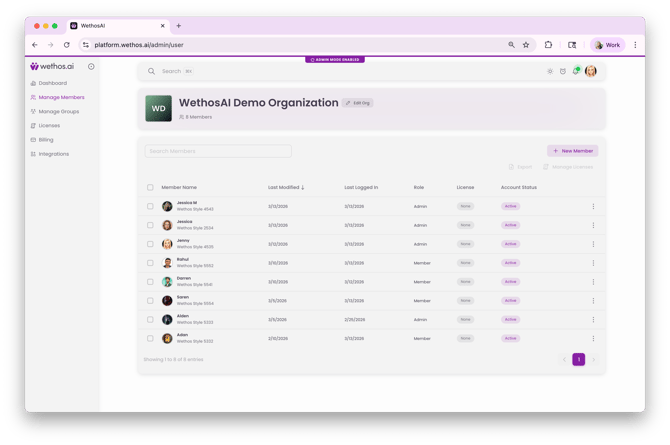
In the Admin panel's left-hand navigation, click Manage Members. You'll see your organization's member table showing all current users.
Step 3: Click New Member
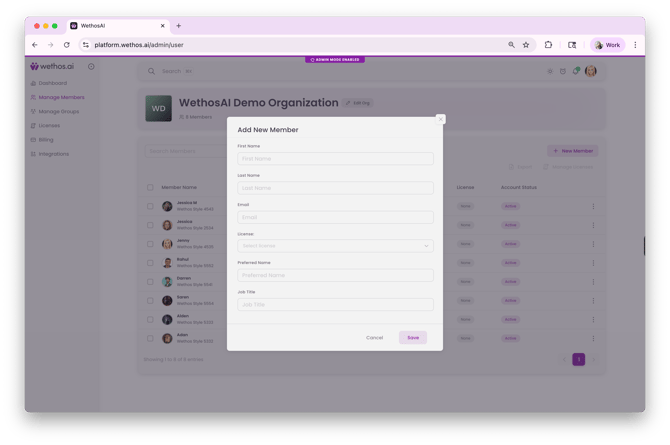
Click the + New Member button in the top-right area of the member table.
Step 4: Fill In the Required Information
Enter the new user's details. Some fields are mandatory and indicated as such — make sure all required fields are completed before proceeding.
Step 5: Save
Click Save. This creates the user account and automatically sends them a welcome email with a unique link to join the platform.
WHAT HAPPENS NEXT
For the New User
- The user receives a welcome email with a unique link.
- They click the link, which takes them to create a password.
- Once their password is set, they can log in to WethosAI.
- They complete their profile and choose their onboarding method (LinkedIn connection, 8-question rapid assessment, or 84-question comprehensive assessment).
- Once the assessment or LinkedIn onboarding is complete, they have access to all platform functionality their license allows.
For You as Admin
The new user will appear in your Manage Members table with a Pending account status until they log in. Once they log in, their status changes to Active. If they don't log in within 14 days, their status changes to Expired and you'll need to resend a reactivation link.
You may also see additional tags under their name: Not Started (logged in but hasn't begun the assessment) or In Progress (started the assessment but hasn't completed it). Use these to follow up with team members who need encouragement to finish onboarding.
TIPS
Add users to their Groups after creating their accounts so the group is ready for them when they complete onboarding.
Enable the features your organization needs (CalendarIQ, Documents, Comfort Index, etc.) before inviting new members so the full platform experience is available from day one. See the Enabling Features & Integrations admin guide for details.
Share the Getting Started as a WethosAI User guide with new members along with their invitation so they know what to expect and how to get the most out of the platform from the start.